
Altuit, Inc ©2026 by Chipp Walters
User Guide
AI that amplifies your craft. Not replace it.
Concept Magic is a Blender addon that brings AI-powered image generation and upscaling directly into your 3D viewport. Render your scene, describe what you want, pick a style, and watch your viewport transform — all without leaving Blender.
Built for industrial designers, concept artists, architects, and 3D generalists who want to accelerate their creative process while keeping full artistic control.
- Blender version: 5.0 or later
- Platform: Windows, macOS, Linux for the cloud engines. Local features (Z Image Turbo, Local upscale, LoRAs) are Windows + NVIDIA only and require the free Comfy Labs app
- Processing: Cloud-based by default — no local GPU required. An optional beta local backend (Comfy Labs) runs free generations and upscales on your own NVIDIA GPU
- Privacy: No images or prompts are stored in the cloud. Local features never leave your machine
About Concept Magic & Comfy Labs
Concept Magic is a Blender addon. Comfy Labs is a separate, free Windows app. Two distinct downloads, two distinct installers. When both are running, Concept Magic talks to Comfy Labs over localhost:8000.
You don’t need Comfy Labs to use Concept Magic. The cloud engines (Nano Banana, Seedream-4) and the cloud upscaler tiers (Good / Better / Best) work out of the box with just a free API key from concept-magic.com — no local GPU required, runs on Windows, macOS, and Linux.
Comfy Labs unlocks a free local path for users with the right hardware. With Comfy Labs running in the background, three additional features appear in the ♥CM panel:
- Z Image — fast local generation engine (~12 s warm)
- Local (free) upscaling — SeedVR2-based 2× upscale; no credits, no network
-
LoRAs for Z Image — pick a LoRA from your local
models/lorasfolder
⚠️ Beta. The Comfy Labs local features are currently in beta. They work end-to-end on supported hardware but expect occasional version-pairing hiccups and ongoing changes between releases. Cloud generation and the cloud upscaler remain the stable, fully-supported path.
Download Comfy Labs: https://www.widgetgadget.com/cw1/Comfy-Labs/ Comfy Labs User Manual: https://www.widgetgadget.com/cw1/Comfy-Labs/Comfy-Labs-User-Manual.html
Hardware: Comfy Labs is Windows 11 + NVIDIA only. Minimum is an RTX 3060 (8 GB VRAM); recommended is an RTX 4070+ (12+ GB VRAM). See Local Features with Comfy Labs (Beta) → Requirements below for the full table. Linux, macOS, and AMD/Intel GPUs are not supported for the local path — the cloud engines still work fine on those platforms.
1. Installation
Install the Addon
Concept Magic ships as a Blender Extension (Blender 4.2+ Extensions Platform). Blender 5.0 or later is required.
-
Download the Concept Magic
.zipfile from Superhive or from your Settings page on concept-magic.com. Don’t extract it. -
Open Blender and choose one of:
Drag-and-drop (fastest): Drag the
.zipdirectly onto a 3D Viewport — Blender’s installer takes over from there.Manual install:
- Edit → Preferences → Get Extensions
- Click the dropdown arrow (top right) → Install from Disk
-
Select the downloaded
.zipfile
-
The addon (listed as ♥CM) is enabled automatically. If it isn’t, switch to the Add-ons tab in Preferences and tick the box next to ♥CM.
Note: Older “Edit → Preferences → Add-ons → Install…” still works if you prefer it, but the Extensions Platform is the recommended path on Blender 4.2+.
Install Python Dependencies
Concept Magic requires two Python libraries: Pillow (image processing — encoding viewport renders, embedding PNG/JPEG metadata) and requests (HTTP client used by the cloud AI engines and cloud upscaler tiers). The addon attempts to install both for you on first run.
If anything fails (some Blender installs sandbox pip away from the addon), do this manually:
- Open the Concept Magic panel (View3D > Sidebar > ♥CM tab).
- If Pillow is missing, you will see a “Pillow Library Required” message with an Install Pillow button. Click it.
- If requests is missing, you will see a similar prompt. Click Install requests.
- Restart Blender after installing dependencies — the running Blender process can’t see a newly installed package until restart.
Tip: If installation fails, try Force Reinstall (the refresh icon next to the Install button). You can also click Show Python Diagnostics to print debug information to Blender’s system console (Window > Toggle System Console).
Local-only users: If you only ever use the local Z Image Turbo engine and Local upscale (via Comfy Labs),
requestsisn’t strictly required — those paths use Python’s built-inurllib. Pillow is still needed for metadata.
2. First-Time Setup
When you first open the Concept Magic panel, you will see the setup screen:
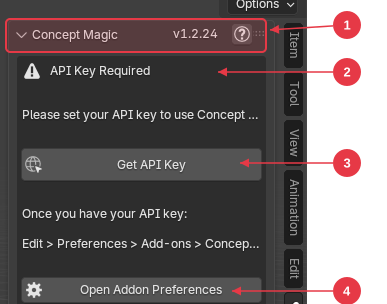
- Panel header — Shows “Concept Magic” with the version number and a (?) link to this documentation.
- API Key Required — Warning indicating the addon needs an API key before it can be used.
- Get API Key — Opens your browser to concept-magic.com where you can create an account and generate your key.
- Open Addon Preferences — Shortcut to the addon preferences panel where you will paste your API key.
Get an API Key
An API key is required to use the cloud AI generation and cloud upscaling services. (You don’t need a key for the local features described in Local Features with Comfy Labs (Beta).)
- Visit concept-magic.com and create an account. You must have a Gmail account to register.
- Open Settings, generate your API key, and copy it.
Enter Your API Key
- In Blender, go to Edit > Preferences > Add-ons.
- Find ♥CM and expand its preferences.
- Paste your API key into the API Key field.
You can also reach addon preferences from the panel itself — when the API key is missing, the panel shows an Open Addon Preferences button.
Purchase Credits
Credits are required for cloud AI generation and cloud upscaling. Credits are purchased through Superhive and are valid for one year from purchase.
First purchase — link your SuperHive User ID
After buying credits on Superhive, link your Superhive account to Concept Magic so credits land in your account automatically:
- Log in at concept-magic.com and open Settings.
-
Find the SuperHive User ID field. Your User ID is shown on Superhive’s purchase confirmation page (e.g.
55555) and in your Superhive receipt email. - Enter your SuperHive User ID and click Link.
- Your purchased credits are applied immediately. Your Credits Remaining count appears in the panel after your first generation.
If you bought credits after registering at concept-magic.com with the same email Superhive has on file, you may see a “Thank You for Your Purchase!” page instead — credits are applied automatically and no linking step is needed.
If you bought credits before creating a Concept Magic account, you’ll see “We Don’t Recognize Your Account” with your SuperHive User ID. Create your account, then enter the User ID in Settings to claim the credits.
All future purchases are automatically credited to your account — no further linking needed once your accounts are paired.
3. The Concept Magic Panel
♥CM on N-panel tab
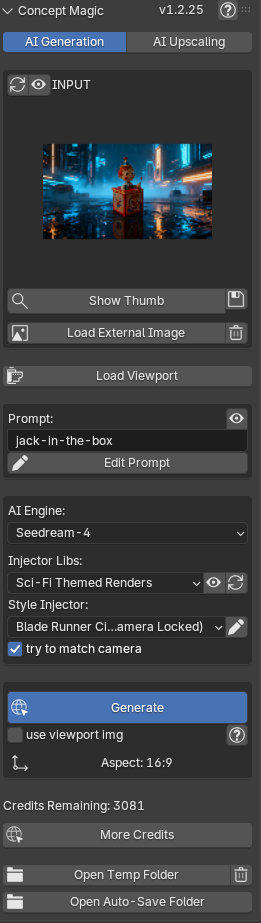
Open the panel from the 3D viewport N-panel: View3D > Sidebar > ♥CM tab.
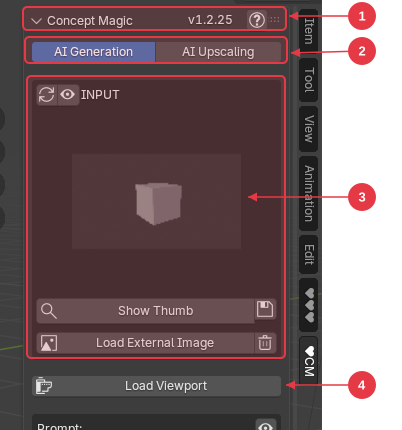
- Panel header — Shows the addon version and a (?) help icon that links to this documentation.
- Mode tabs — Switch between AI Generation and AI Upscaling workflows.
- Image preview area — Shows the current working image with toolbar and action buttons (Show Thumb, Load External Image, etc.).
- Load Viewport — Captures the current viewport as input for generation or upscaling.
Mode Tabs
Two mode tabs at the top of the panel switch between the addon’s primary workflows:
- AI Generation — Render your viewport, write a prompt, select a style, and generate an AI-enhanced image.
- AI Upscaling — Take any loaded image and upscale it to higher resolution.
Image Preview Area
Input
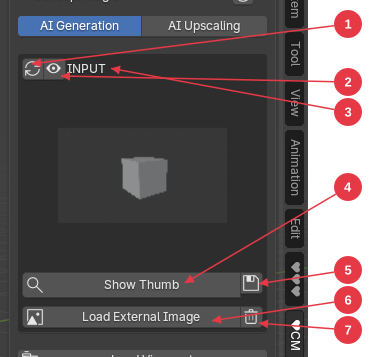
Output
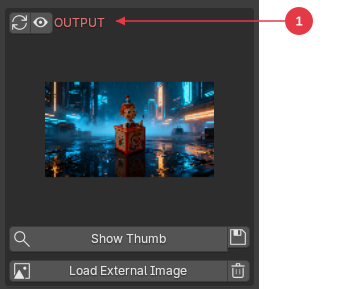
- Refresh (↻) — Reload the source image used as input for comparison.
- Metadata (eye icon) — View embedded image metadata.
- INPUT / OUTPUT label — Indicates whether the image is the source input or the AI-generated result.
- Show Thumb — Open the full-resolution image at 100% zoom.
- Save (✓) — Save the current image to disk via a file browser.
- Load External Image — Load an external image file into the preview.
- Clear (🗑) — Remove the current image from the preview.
The central image preview is shared between both modes. It shows the current working image as a thumbnail.
Toolbar above the thumbnail:
- Refresh (↻) — Load the source image that was used as input for the last generation or upscale. Useful for comparing “before” and “after.”
- Metadata (eye icon) — View the metadata embedded in the current image (prompt, engine, style, timestamp, etc.).
-
INPUT / OUTPUT label — In AI Generation mode, a label appears indicating the role of the current image:
- OUTPUT (red) — The image is an AI-generated result. Shown when use viewport img is enabled and the image is a generation result.
- INPUT — The image will be used as the source for the next generation.
- No label is shown in AI Upscaling mode or when no image is loaded.
Buttons below the thumbnail:
-
Show Thumb — Opens the full-resolution image in a new Blender window at 100% zoom.
- Shift+Click — Instead of opening a new window, sets the current image as a background image on the active scene camera (Depth=Front, Frame Method=Fit). Opacity is left at Blender’s default so you can adjust it freely from the Camera background panel. You must be looking through the camera (Numpad 0) for the shift-click to take effect; otherwise CM warns and bails. Any prior CM-set background on that camera is replaced (other manually-added background images are left alone). Press Esc anywhere in the 3D View to remove the CM background — useful for compositing the AI result over your scene without rebuilding your render setup, and a fast way to compare the generated frame against your actual geometry.
- Save (checkmark icon) — Save the current image to disk via a file browser.
- Load External Image — Load an external image file (PNG, JPG, BMP, TIF, WEBP) into the preview.
- Clear (trash icon) — Remove the current image from the preview.
4. AI Generation Workflow
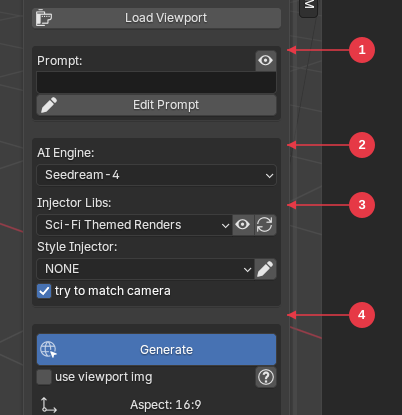
- Prompt — Describe what you want. Click Edit Prompt for a larger editing dialog, or the eye toggle to preview the full constructed prompt.
- AI Engine — Choose between Seedream-4 (default), Nano Banana, and Z Image Turbo (local — only when Use Local Server is on; see Local Features).
- LoRA (Z Image Turbo only) — When Z Image Turbo is the selected engine, a LoRA dropdown appears. Pick None for the standard workflow or pick a LoRA to route through the LoRA workflow with the trigger word auto-prepended. Selecting a LoRA reveals a LoRA Strength slider directly below it.
- LoRA Strength (Z Image Turbo, only when a LoRA is selected) — Slider, range 0.0–3.0, default 1.75. Controls how strongly the LoRA influences the result. 1.0 is “as trained”; the Concept Magic pipeline expects ~1.75 by default. Lower to soften the LoRA’s effect; raise above 2.0 for strongly overdriven looks.
- Control Strength (Z Image Turbo, always shown) — Slider, range 0.0–1.0 (soft min 0.2), default 0.65. Controls how tightly the rendered viewport (canny/depth) constrains the result. Lower values free up the prompt and produce more variation between generations in a batch — useful when you want several different takes. Higher values lock the result to the rendered composition.
- Style Injector — Select an Injector Library and a specific style to apply a pre-tuned look to your generation (see Style Injectors).
- Generate — Sends your image and prompt to the cloud (or to Comfy Labs locally for Z Image Turbo). The button is highlighted for visibility. Options below include try to match camera, use viewport img, and the detected aspect ratio.
Step by Step
- Render your viewport — Click Load Viewport to capture the current viewport as an image. This becomes the input for AI generation.
- Write a prompt — Describe what you want in the Prompt text field. For example: “futuristic city, neon lights, rainy atmosphere”
-
Choose an AI engine — Select from the AI Engine dropdown:
- Seedream-4 (default, cloud) — High-quality general-purpose generation
- Nano Banana (cloud) — Alternative engine with different artistic characteristics
- Z Image Turbo (local, free) — Fast local engine via Comfy Labs (~12 s warm). Only listed when Use Local Server is enabled in addon preferences. See Local Features with Comfy Labs (Beta).
-
Pick a LoRA (optional, Z Image Turbo only) — Choose a LoRA from the LoRA dropdown to apply a fine-tuned visual style. Click the ↻ button next to the dropdown to refresh the list from your local
models/lorasfolder. The list is read from a local cache on disk, so it survives Blender restarts and the panel never blocks on a network call. Press ↻ only when you’ve added or removed LoRAs inmodels/loras. Pick None for the standard workflow. - Tune LoRA Strength (optional, when a LoRA is selected) — Use the LoRA Strength slider (0.0–3.0, default 1.75) to dial how strongly the LoRA bends the result. Drop toward 1.0 for a subtler effect; push past 2.0 for strongly overdriven looks.
- Tune Control Strength (optional, Z Image Turbo only) — Use the Control Strength slider (0.0–1.0, default 0.65) to balance how much the rendered viewport (via canny/depth conditioning) constrains the AI. Lower values give the prompt more freedom and produce more varied results across a batch; higher values keep the output close to your rendered composition.
- Pick a style (optional) — Use the Style Injector system to apply a pre-tuned look (see Style Injectors). Style Injectors stack with both Z Image Turbo and a selected LoRA.
- Click Generate — The addon sends your image and prompt to the chosen backend. A status overlay shows elapsed time while you wait. (For Z Image Turbo, the first generation after Comfy Labs starts takes ~1–3 min while models load into VRAM; subsequent generations take ~12 s warm.)
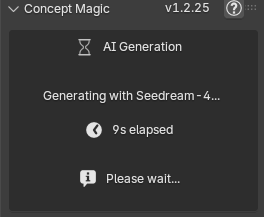
- Review the result — The generated image appears in the preview area.
Load Viewport Button
The Load Viewport button captures the current 3D viewport as an image and loads it into the preview area. It uses a fast EEVEE viewport capture.
During rendering, most viewport overlays (floor grid, axes, cursor, annotations, etc.) are temporarily hidden to produce a clean capture. Wireframe display is preserved if you have it enabled.
Prompt Tips
- Be descriptive about mood, lighting, and materials.
- Style Injectors add their own prompt text before and after yours — your prompt is the creative middle.
- If you leave the prompt empty, it defaults to “scene only”.
- Click Edit Prompt (pencil icon) to open a larger editing dialog.
- Click the eye toggle next to “Prompt:” to display the full constructed prompt as a viewport overlay — this shows exactly what will be sent to the AI, including Style Injector text.
Options
- try to match camera (enabled by default) — Adds camera-locking prompts to preserve the perspective and composition from your input image. Disable this when you want the AI to reinterpret the camera angle. (Z Image Turbo skips camera-lock prompts regardless of this toggle — its workflow is tuned for prompt-driven reinterpretation.)
- use viewport img — When enabled, generation always uses the latest viewport render as input, even if you have a different image loaded. Click the (?) button next to it for more information.
- Aspect ratio — Displayed below the Generate button. Shows the detected aspect ratio of your input image (e.g., 16:9, 1:1, 4:3). Hover over it for a tooltip explaining how it is determined — from either the camera render resolution settings or the dimensions of a loaded external image.
- Ctrl+Click Generate — Instead of generating, shows the source viewport image that was used as input. Useful for quick before/after comparison.
- Shift+Click Edit Prompt — Copies the full effective prompt (base + Style Injector prepend/append + LoRA trigger if any) to the clipboard without opening the editor.
5. AI Upscaling Workflow
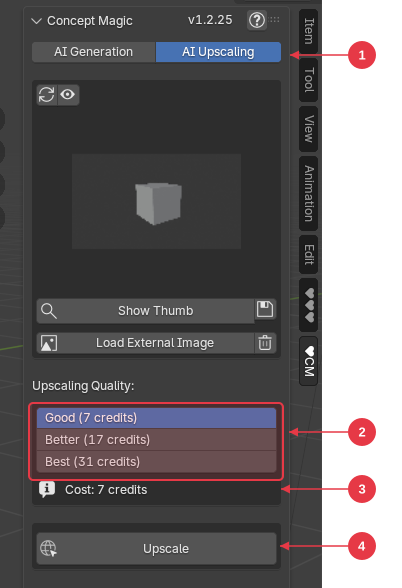
- AI Upscaling tab — Switch to upscaling mode from the mode tabs at the top of the panel.
- Quality tiers — Choose between Good (7 credits), Better (17 credits), Best (31 credits), and Local (free) (only when Use Local Server is on).
- Cost display — Shows the credit cost for the currently selected quality tier (or “free” for Local).
- Upscale — Sends the loaded image to the cloud (or to Comfy Labs locally) for 2x upscaling.
Step by Step
- Load or render an image — Use Load Viewport or Load External Image to get an image into the preview.
- Switch to AI Upscaling mode using the tab at the top of the panel.
- Select a quality tier:
| Quality | Credits | Backend | Description |
|---|---|---|---|
| Good | 7 | Cloud | Fast upscaling with good quality |
| Better | 17 | Cloud | Professional-grade with better detail preservation |
| Best | 31 | Cloud | Highest quality with maximum detail enhancement |
| Local (free) | 0 | Local (Comfy Labs, SeedVR2) | Beta local upscaler at 2× with sensible defaults — no credits, no API key, no network. ~30 s to 3 min depending on input size and GPU. Only listed when Use Local Server is on. See Local Features |
- Click Upscale — The image is sent to the chosen backend for processing. A status overlay shows progress.
- Review the result — The upscaled image (2x resolution) appears in the preview.
Size Limits
- Maximum input size: ~2.08 megapixels (e.g., 1920 x 1080)
- Output: 2x the input dimensions (e.g., 1920 x 1080 → 3840 x 2160)
- Maximum output: ~8.3 megapixels
If your image exceeds the input limit, you will see an error message showing the current and maximum sizes.
6. Style Injectors
Style Injectors are pre-tuned prompt templates that instantly apply a specific look, lighting, material treatment, or scene to your generation. They let you get consistent, professional results without writing complex prompts.
How They Work
Each Style Injector is a small JSON file containing three fields:
- title — The display name shown in the dropdown
- prepend_prompt — Text added before your prompt
- append_prompt — Text added after your prompt
When you generate, the final prompt is constructed as:
[prepend_prompt], [your prompt], [append_prompt]
If try to match camera is also enabled, camera-locking text wraps around the entire prompt.
Using Style Injectors
- Select a library category from the Injector Libs dropdown.
- Select a specific style from the Style Injector dropdown below it.
- Click the preview button (eye icon next to the library dropdown) to see a visual preview of the selected library in a new window.
- Write your prompt and click Generate — the Style Injector does the rest.
Set Style Injector to NONE to generate with only your custom prompt.
Library Preview Button (Eye Icon)
The eye icon button next to the Injector Libs dropdown has three actions:
| Action | What It Does |
|---|---|
| Click | Opens a gallery preview of all styles in the current library |
| Shift+Click | Forces regeneration of the composite preview image |
| Ctrl+Click | Batch Generate — Runs AI generation for styles in the library |
Batch Generate for Library Previews (Ctrl+Click)
Ctrl+Click on the library preview button triggers batch AI generation for libraries. This generates before/after preview images for each style in the library using the currently selected AI engine and viewport.
How it works:
- Select a library from the Injector Libs dropdown.
-
Choose the scope:
- Set Style Injector to NONE → generates ALL styles in the library.
- Select a specific style → generates only that one style.
- Ctrl+Click the eye icon button.
- A confirmation dialog appears showing the library name, AI engine, number of styles, and a warning: “This will use N renders.”
- Click OK to start. Blender will freeze while generation runs (each style takes ~15–30 seconds).
- Progress is printed to the system console (Window > Toggle System Console).
- When complete, the before/after images are saved alongside the style JSON files in the library folder.
After batch generation:
- Use Shift+Click on the eye icon to regenerate the composite preview with your new images.
-
Each style gets a
_before.jpg(viewport input) and_after.jpg(AI output) saved in the library folder.
Built-in Categories
Concept Magic ships with 10 categories containing ~59 curated styles:
| Category | Description |
|---|---|
| Sci-Fi Themed Renders | Cyberpunk cities, alien deserts, Blade Runner, Tron, H.R. Giger |
| Nature Themed Renders | Underwater environments, tropical beaches |
| Other Themed Renders | Architecture, interiors, showrooms, horror, weather moods |
| Modeling | Clay models, form exploration, orthographic views, sci-fi tech |
| Texture and Materials | Automotive paint, metal/industrial, holographic, space station, CMF |
| Lighting and Effects | Studio, cinematic, golden hour, ambient occlusion, global illumination |
| Camera and Composition | Bird’s-eye, worm’s-eye, tilted horizon, hero perspective |
| Props and Scene Details | Human cutouts, animal cutouts, alpha masks for compositing |
| Figure Generation | Sci-fi figures with helmets, retro-futurist characters |
| Concept Generation | Industrial designer marker sketch and more |
The library is continuously growing with new styles added in updates.
Creating Custom Styles
You can create your own Style Injectors and organize them as custom libraries. The folder name decides which engine the library is routed to — pick the prefix that matches the engine you want to feed.
Step 1 — Pick a folder name (this is the routing key)
The first segment of your folder name is the engine routing prefix:
| Folder name pattern | Routes to | Shows up under |
|---|---|---|
z-... (e.g. z-mystyles) |
Z Image Turbo (local — Comfy Labs) | Z Image Turbo only |
anything else (e.g. mystyles) |
Cloud | Nano Banana and Seedream-4 |
Examples:
-
D:\styles\z-product-shots\→ appears in the Style Injector dropdown when Z Image Turbo is the active engine. -
D:\styles\product-shots\→ appears under Nano Banana and Seedream-4.
Folder names must be unique across all libraries (built-in and custom). If you try to add a folder named
z-themes-scifi(already shipped), the Add button will reject it — rename your folder.
Step 2 — Drop your .json files in the folder
Each style is one JSON file with this shape:
{
  "title": "My Custom Style",
  "prepend_prompt": "cinematic lighting, dramatic shadows,",
  "append_prompt": "photorealistic, 8k detail, professional photography"
}
-
titleis what appears in the Style Injector dropdown (independent of the JSON’s filename). -
prepend_promptis added before your prompt;append_promptis added after. Either is optional, but at least one must be present for the file to validate. -
File names starting with
_and a file literally namedtoc.jsonare ignored — handy if you want to keep notes alongside your styles.
Step 3 — Register the folder in Preferences
- Edit > Preferences > Add-ons > ♥CM.
- In the Injector Libraries section, click the + button.
- Browse to your folder and select it.
- The addon validates the folder (must contain ≥1 valid JSON) and adds it to the list.
-
The new row shows three columns:
- Folder — the disk folder name; this is the routing key.
- Display Name — auto-filled from the folder name; click to edit (this is what appears in the Injector Libs dropdown).
-
Engines — derived from the folder prefix.
Z Image Turbo (L)for local,Nano Banana, Seedream-4 (C)for cloud. The “(L)”/“©” tag is your visual confirmation that the routing came out the way you intended.
The library appears in the Injector Libs dropdown immediately when you switch to a matching engine in the main panel.
Tip: You can edit any built-in style’s JSON directly in Blender by clicking the pencil icon next to the Style Injector dropdown. This opens the file in Blender’s Text Editor (press Shift+F11 to open a Text Editor area if needed).
Refresh Button (↻ Icon)
The refresh icon button next to the Injector Libs dropdown has three actions:
| Action | What It Does |
|---|---|
| Click | Refreshes the current library and reloads all style files |
| Shift+Click | Batch-rename style JSON files to match their internal titles |
| Ctrl+Click | Opens the selected library’s folder in the system file browser |
Injector Libraries in Preferences
All injector libraries — both built-in and custom — are managed in the Injector Libraries section of addon preferences. The list has three columns:
| Column | What it shows |
|---|---|
| Folder | The disk folder name. Read-only. Also the routing key — its prefix decides which engine the library serves. |
| Display Name | The label shown in the Injector Libs dropdown. Editable for custom libraries; fixed (from libs/toc.json) for built-ins. |
| Engines | Derived label — Z Image Turbo (L) for local libraries, Nano Banana, Seedream-4 (C) for cloud. Driven entirely by the folder prefix; you don’t pick this directly. |
Each row also has an enabled checkbox at the front. Disabled libraries are hidden from the dropdown but stay in the list.
Built-in libraries (Blender icon) ship with the addon and cannot be removed. You can disable them if you don’t need them.
Adding a custom library:
- Edit > Preferences > Add-ons > ♥CM.
- In the Injector Libraries section, click the + button.
- Browse to a folder containing style JSON files and select it. The folder name decides routing — see Creating Custom Styles for the prefix table.
-
The addon validates the folder — it must contain at least one valid JSON file with
titleandprepend_promptorappend_promptfields. It also rejects folder-name collisions with built-in libraries (rename your folder if so). - The new row appears with Display Name auto-filled from the folder name — edit it if you want a friendlier label.
-
Confirm the Engines column shows the routing you wanted (
(L)for Z Image Turbo,(C)for cloud). If(C)shows up where you wanted(L), your folder is missing thez-prefix — rename it on disk, then re-add.
Managing libraries:
- Enable/Disable — Toggle the checkbox at the front of each row.
- Remove (- button) — Remove a custom library. Built-ins cannot be removed.
- Open Folder (folder icon) — Opens the selected library’s folder in your system file browser.
- Style count — The detail block under the list shows how many valid styles were found in the folder of the selected row, plus the full filesystem path.
Note: Older builds used internal keys like
TP_0,TP_1, … for custom libraries. These are auto-migrated to folder-name keys on first launch after upgrading. Any scene that referenced the old key gets patched to the new one — no manual cleanup needed. If you previously used the “Custom Library Path” setting, your folder atDocuments/cm_customis also auto-migrated.
7. Auto-Save & Metadata
Auto-Save
When enabled (on by default), every image you render, generate, or upscale is automatically saved to your local drive.
-
Default save location:
Documents/CM_Pictures - Configurable in addon preferences (path and format)
- Formats: PNG (lossless, default) or JPEG (lossy, smaller files)
-
File naming:
CM_[OperationType]_[YYYY-MM-DD_HH-MM-SS].[ext]-
e.g.,
CM_Generation_2026-02-05_14-30-22.png
-
e.g.,
Embedded Metadata
Every saved image includes embedded metadata that records how it was created:
| Field | Description | Present In |
|---|---|---|
| Software | “Concept Magic Blender Addon” | All images |
| OperationType | “Viewport”, “Generation”, or “Upscale” | All images |
| Timestamp | When the image was created | All images |
| AddonVersion | e.g., “1.3.24” | All images |
| Prompt | The full prompt used | Generation only |
| AIEngine | “NANO_BANANA”, “SEEDREAM_4”, or “Z_TURBO” | Generation only |
| StyleInjector | Name of the style used | Generation only |
| LoRA | LoRA name (or “None”) | Z Image Turbo generations |
| UpscaleQuality | “Good”, “Better”, “Best”, or “LOCAL” | Upscale only |
Viewing metadata: Click the eye button in the toolbar above the image thumbnail to open a metadata dialog. Use the Copy to Clipboard button to copy all metadata as text.
PNG images store metadata as text chunks. JPEG images store metadata in EXIF tags.
8. Utilities
Credits
- Credits Remaining is displayed at the bottom of the panel.
- Click More Credits to visit the pricing page and purchase additional credits through Superhive.
- Credits are valid for one year from purchase.
Temp Folder
The addon stores working files in a temporary directory (%TEMP%/blender_cm_addon_temp/ on Windows).
- Open Temp Folder — Opens the folder in your file explorer.
- Delete temp files (trash icon) — Clears all files from the temp folder to free up disk space.
Auto-Save Folder
- Open Auto-Save Folder — Opens your auto-save directory in the file explorer. Only available when auto-save is enabled.
Viewport Prompt Overlay
Click the eye toggle next to the “Prompt:” label to display the full constructed prompt as a text overlay in the viewport. This shows your prompt combined with any Style Injector text — exactly what will be sent to the AI.
- The overlay uses a monospace font for readability.
- Text color and size are configurable in addon preferences.
- Click the toggle again to dismiss the overlay.
9. Preferences Reference
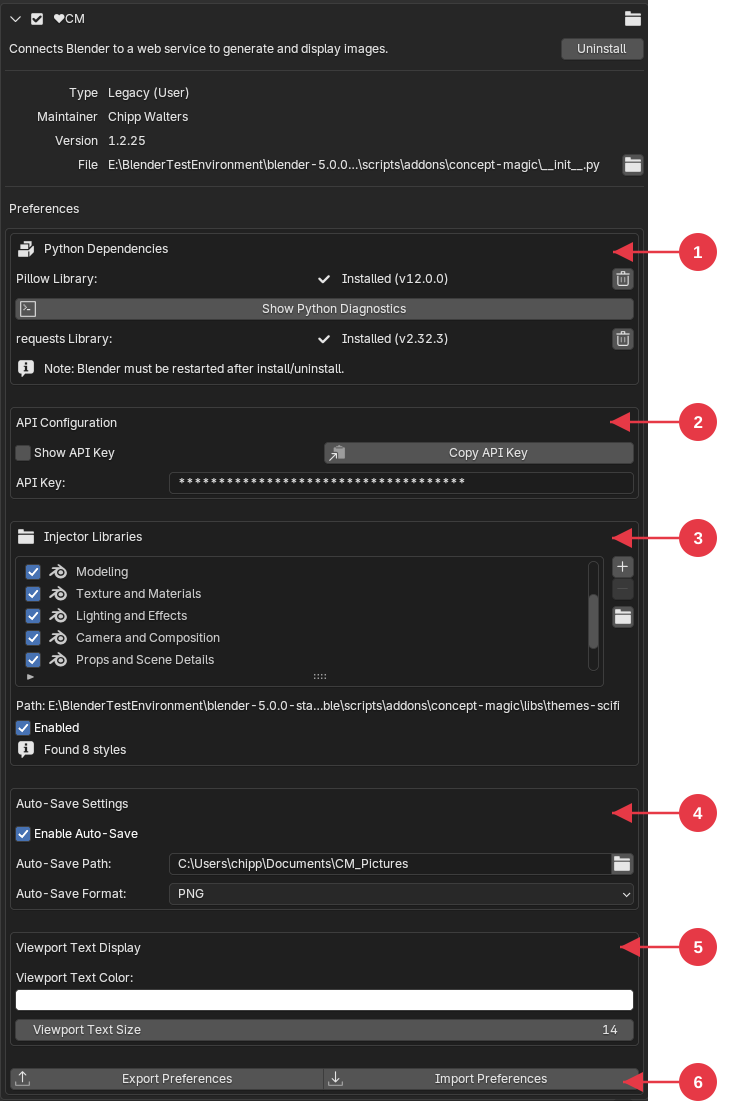
- Python Dependencies — Install status for Pillow and requests libraries, with diagnostic tools.
- API Configuration — Your API key (masked), the Use Local Server toggle, and the Test Local Server diagnostic button.
- Injector Libraries — Enable/disable built-in libraries and manage third-party style library folders.
- Auto-Save Settings — Toggle auto-save, set the save folder and image format.
- Viewport Text Display — Customize the color and size of the prompt overlay text.
- Keyboard Shortcuts — Toggle Esc-closes-image-windows.
- Export / Import Preferences — Save your addon settings (including library states) to a file or load them from a previous export.
Access addon preferences via Edit > Preferences > Add-ons > ♥CM.
Python Dependencies
| Setting | Description |
|---|---|
| Pillow status | Shows installed version or “Not Installed” |
| Install / Force Reinstall / Uninstall Pillow | Manage the Pillow library |
| requests status | Shows installed version or “Not Installed” |
| Install / Uninstall requests | Manage the requests library |
| Show Python Diagnostics | Prints detailed Python environment info to the system console |
Always restart Blender after installing or uninstalling dependencies.
API Configuration
| Setting | Description |
|---|---|
| API Key | Your Concept Magic API key (masked by default). Required for cloud generations (Nano Banana, Seedream-4) and the cloud upscaler tiers (Good / Better / Best). Not required if you only use the local Z Image Turbo path, the Local upscale, or LoRAs with Use Local Server on |
| Show API Key | Toggle to reveal the key in plain text |
| Copy API Key | Copy the key to your clipboard |
| Use Local Server | When checked, the addon talks to the Comfy Labs Electron app on http://localhost:8000. This unlocks three local-only features (currently in beta): Z Image Turbo generation, Local SeedVR2 upscaling, and a LoRA dropdown for Z Image Turbo. Uncheck to use only the cloud engines. See Local Features with Comfy Labs (Beta) |
| Test Local Server | Diagnostic button that appears under the toggle when Use Local Server is on. Probes ComfyUI on :8188 and the cm_bridge on :8000, reports each result, and surfaces the most common failure modes (cm_bridge disabled in Comfy Labs prefs, Comfy Labs not running, port conflict) |
Injector Libraries
| Control | Description |
|---|---|
| Library list | Three-column list: Folder (read-only — also the routing key), Display Name (editable for custom, fixed for built-in), Engines (derived — Z Image Turbo (L) or Nano Banana, Seedream-4 (C)). Each row has an enable/disable checkbox at the front |
| + button | Browse to add a new custom library folder. Validates JSON content and rejects folder-name collisions with existing libraries |
| - button | Remove the selected custom library (disabled for built-in libraries) |
| Folder button | Open the selected library’s folder in the system file browser |
| Path (detail) | Full filesystem path of the selected row (read-only for built-in, editable for custom) |
| Style count (detail) | Shows how many valid style JSON files were found in the selected folder |
The Engines column is read-only — it’s derived from the first segment of the folder name (
z-→ Z Image Turbo, no prefix → cloud). To change a library’s routing, rename the folder on disk and re-add it. See Creating Custom Styles for the full prefix table.
Auto-Save Settings
| Setting | Default | Description |
|---|---|---|
| Enable Auto-Save | On | Automatically save every render, generation, and upscale |
| Auto-Save Path | Documents\CM_Pictures |
Where images are saved. Click the folder icon to pick a different location |
| Auto-Save Format | PNG | PNG (lossless, embeds rich text-chunk metadata) or JPEG (smaller files, embeds EXIF metadata via the Software, ImageDescription, and UserComment fields). PNG is recommended if you plan to reload an image into the addon later — the metadata round-trips cleanly |
Viewport Text Display
| Setting | Default | Description |
|---|---|---|
| Viewport Text Color | White (1, 1, 1, 1) | Color of the overlay messages the addon shows in the 3D viewport (prompt previews, warmup notices, “Edit Prompt” copy-confirmations, etc.). Pick a contrasting color if your background makes the text hard to read |
| Viewport Text Size | 15 | Font size in pixels (range: 10–72). 15 px reads cleanly on a 1920×1080 panel |
Keyboard Shortcuts
| Setting | Default | Description |
|---|---|---|
| Esc Dismisses CM Overlays | On | When checked, pressing Esc closes the Show Thumb and Library Preview popup windows (matching Blender’s render-window behavior) and removes the camera background image set by Shift+Click on Show Thumb. The 3D View Esc binding is scoped to the 3D View area only — other editors keep their default Esc behavior. Uncheck if you’d rather close popups via their X button and remove the camera background manually from the Camera properties panel |
Export / Import Preferences
At the bottom of the preferences panel, two buttons let you back up and restore all your Concept Magic settings:
-
Export Preferences — Saves all settings (API key, library enable/disable states, third-party library paths, auto-save config, viewport text options) to a
.jsonfile via a file browser. -
Import Preferences — Loads settings from a previously exported
.jsonfile, restoring all values. Built-in library enable/disable states and third-party library entries are restored; if a library folder path doesn’t exist on the new machine, a warning is shown.
This is useful for:
- Migrating settings between machines or Blender installations
- Backing up your configuration before reinstalling
- Sharing settings (minus the API key) with collaborators
Note: The exported file contains your API key in plain text. Treat it like a password — do not share it publicly.
Note: When importing a preferences file from an older version that used the single “Custom Library Path” setting, the path is automatically migrated to a third-party library entry.
10. Local Features with Comfy Labs (Beta)
⚠️ Beta. The local features below are currently in beta. They work end-to-end on supported Windows + NVIDIA hardware, but expect a few rough edges, occasional version-pairing hiccups, and ongoing changes between releases. Cloud generation (Nano Banana / Seedream-4) and the cloud upscaler (Good / Better / Best) remain the stable, fully-supported path.
A premium version of Concept Magic talks to a free local backend called Comfy Labs — a standalone Windows app that runs Concept Magic’s local workflows on your own NVIDIA GPU. No credits consumed, no images leave your machine, and on a decent card it’s faster than the cloud round-trip.
Comfy Labs is a zip file and can be downloaded from https://www.widgetgadget.com/cw1/Comfy-Labs/. A comprehensive manual can be found there as well.
What “Local” Unlocks in the Addon
When Use Local Server is enabled in addon preferences and Comfy Labs is running, three local-only features become available in the ♥CM panel:
- Z Image Turbo generation — a fast, free local AI engine that appears in the AI Engine dropdown alongside Nano Banana and Seedream-4. Roughly 12 seconds per image once warm. Hidden from the dropdown when Use Local Server is off.
-
Local upscaling (SeedVR2) — a 4th radio option,
Local (free), appears next to Good / Better / Best in AI Upscaling mode. Runs SeedVR2 at 2× with sensible defaults — no credits, no API key, no network. Takes ~30 s to 3 min depending on input size and GPU. -
LoRA dropdown for Z Image Turbo — when Z Image Turbo is the selected engine, a LoRA dropdown appears below it with a small ↻ refresh button next to it. The list is empty on first launch — the panel shows a “Click ↻ to load LoRAs” hint until you press it. Clicking ↻ queries Comfy Labs for the LoRAs actually installed in your
models/lorasfolder and writes the result to a local cache on disk, so the list survives Blender restarts and the panel never blocks on a network call during normal use. Press ↻ again only when you’ve added or removed LoRAs inmodels/loras. Pick None for the standard workflow, or pick a LoRA to route through the LoRA workflow with the trigger word auto-prepended to your prompt.
Style Injectors (themes, lighting, modeling, etc.) stack with all three.
Requirements
| Component | Minimum | Recommended |
|---|---|---|
| OS | Windows 11 | Windows 11 24H2 |
| GPU | NVIDIA RTX 3060 (8 GB VRAM) | RTX 4070+ (12+ GB VRAM) |
| RAM | 16 GB | 32 GB |
| Disk | 80 GB free | 120 GB free (SSD) |
| NVIDIA Driver | 535.0+ | Latest Game Ready or Studio |
Linux, macOS, and AMD/Intel GPUs are not supported for the local path. Cloud engines work on every platform Blender does.
Install Comfy Labs
- Download Comfy Labs from https://www.widgetgadget.com/cw1/Comfy-Labs/ and run the installer.
- Launch Comfy Labs. On first run it walks you through a setup wizard: GPU check, model selection, and locating any existing ComfyUI models you already have on disk (it links them in place rather than copying).
-
Enable the cm_bridge inside Comfy Labs preferences. The cm_bridge is the small HTTP service on port
8000that the Blender addon talks to. It’s opt-in — if you don’t enable it, the addon’s “Test Local Server” button will report it as missing. - Leave Comfy Labs running in the background while you work in Blender.
Use it from Blender
-
In Blender, open Edit → Preferences → Add-ons → ♥CM and confirm Use Local Server is checked (this is the default). Click Test Local Server to confirm the addon can see ComfyUI on
:8188and the cm_bridge on:8000. -
In the ♥CM panel (3D Viewport → Sidebar → ♥CM tab):
-
For local generation, set AI Engine to
Z Image Turboand (optionally) pick a LoRA. -
For local upscaling, switch to Upscale mode and pick
Local (free).
-
For local generation, set AI Engine to
- Frame your scene, click Load Viewport, edit your prompt, and click Generate (or Upscale).
The first generation after Comfy Labs starts takes ~1–3 minutes while models load into VRAM — the addon shows a live “models loading…” status with an elapsed-seconds counter. Subsequent generations take ~12 seconds warm. Local upscales typically run 30 s – 3 min depending on input size and GPU.
If anything misbehaves, the Test Local Server button in addon preferences is the first thing to try — it pinpoints the most common failures (Comfy Labs not running, cm_bridge disabled in Comfy Labs prefs, port conflict).
Daily Flow
| Action | How |
|---|---|
| Start | Launch the Comfy Labs app |
| Stop | Quit the Comfy Labs app |
| Diagnose | Click Test Local Server in addon preferences |
| Switch back to cloud | Uncheck Use Local Server in addon preferences (Z Image Turbo, Local upscale, and the LoRA dropdown will hide automatically) |
| Output files | Auto-Save still writes to Documents\CM_Pictures (or wherever you’ve set Auto-Save Path) — same as cloud generations |
Compatibility Note
The Concept Magic addon and the Comfy Labs app ship from separate releases and version independently. The current pairing is addon 1.3.17+ ↔ Comfy Labs 0.2.27+ (LoRA dropdown requires addon 1.3.24+ paired with Comfy Labs 0.2.31+; Local upscale requires Comfy Labs 0.2.29+). The full matrix lives in COMPATIBILITY.md.
11. How Creators Use Concept Magic
Form Development
Use Style Injectors like the Industrial Design Sketch to visualize rough forms and explore multiple design directions early. Your models stay simple, but your concepts look alive — perfect for exploring shape language before committing to detail. Ideal for industrial design, automotive, and concept artists.
Template Generation
Generate front, side, and perspective concept views directly from your Blender scene using orthographic Style Injectors. Perfect for modeling guides, reference sheets, and early client presentations.
CMF Exploration
Test unlimited color, material, and finish (CMF) combinations using CMF Style Injectors. Quickly see what fits your product, interior, or render scene without manual shader tweaks. Ideal for visual designers and material artists.
Lighting Experiments
Explore natural, studio, or cinematic lighting in seconds. Switch from golden hour to overcast or indoor softbox with a single click — no HDRIs, nodes, or light setups required.
Props & Characters
Generate realistic 2D photo characters with alpha maps ready for Blender. Use them as camera-facing planes in archviz or concept renders to bring scale and story to your designs. Adds realism with minimal performance cost.
Camera & View Angles
Generate multiple camera views from Style Injectors — bird’s-eye, worm’s-eye, hero perspective, and more. Helps with composition exploration without repositioning your scene.
Concept Scene Generation
Drop your Blender models into rich, AI-generated environments — from sci-fi corridors to modern interiors, photo studios, and beyond. Perfect for ideation, storytelling, and fast visual moodboards.
Closing the Loop
Every image, lighting setup, and composition you generate can flow straight back into Blender — guiding your modeling, materials, and scene design. Concept Magic doesn’t finish your workflow. It fuels it.
12. Troubleshooting
Dependencies Not Installed
Symptom: Panel shows “Pillow Library Required” or “requests Library Required.”
Fix:
- Click the Install button shown in the panel.
- If that fails, click Force Reinstall (refresh icon).
- Restart Blender after installation.
- If problems persist, click Show Python Diagnostics and check the system console (Window > Toggle System Console) for errors.
API Key Issues
Symptom: Panel shows “API Key Required” or generation fails with “Invalid API key.”
Fix:
- Verify your API key at concept-magic.com.
- Re-enter the key in Edit > Preferences > Add-ons > ♥CM > API Key.
- Make sure there are no leading/trailing spaces.
Error: “Account inactive. Please contact support.”
- Your account may need attention. Contact support through the website.
Insufficient Credits
Symptom: Generation or upscaling fails with “Insufficient credits.”
Fix: Click More Credits at the bottom of the panel to purchase additional credits through Superhive.
Image Too Large for Upscaling
Symptom: “Image too large! Input: X.XX MP would produce Y.YY MP output (max: 8.3 MP). Max input: 2.08 MP (e.g., 1920x1080)”
Fix: Use a smaller input image. The maximum input for upscaling is approximately 2.08 megapixels (e.g., 1920 x 1080). The upscaler doubles the resolution, so your output cannot exceed ~8.3 MP.
No Image Loaded
Symptom: “No image loaded. Please render or load an image first.”
Fix: Click Load Viewport to capture your viewport, or click Load External Image to load an existing image file.
Viewport Render Fails
Symptom: “Could not find a valid 3D Viewport context for rendering.”
Fix: Make sure you have an active 3D Viewport area open. The addon needs a visible viewport to capture.
Generation Takes Too Long
The status overlay shows elapsed time during generation. Typical times vary by engine and server load. If generation seems stuck:
- Check your internet connection.
- Try again — the cloud service may have experienced a temporary issue.
- Try the other AI engine (switch between Seedream-4 and Nano Banana).
Pillow Installed But Not Detected
Symptom: Pillow shows as installed but the addon still shows warnings.
Fix:
- Click Force Reinstall in addon preferences.
- Restart Blender.
- If the issue persists, click Show Python Diagnostics and verify that Pillow’s install path is accessible to Blender’s Python.
Local Server Not Reachable (Z Image Turbo / Local Upscale / LoRA)
Symptom: Z Image Turbo or Local upscale fails with errors like “Is Comfy Labs running and is the cm_bridge enabled in its prefs?”, or the LoRA dropdown stays empty after pressing ↻.
Fix:
-
In addon preferences, click Test Local Server — it checks both ComfyUI on
:8188and the cm_bridge on:8000and tells you which one is missing. - Make sure the Comfy Labs Electron app is running.
- Inside Comfy Labs, open its preferences and confirm cm_bridge is enabled (it’s opt-in by default).
-
If a port conflict is reported, close any other process using
:8000or:8188and restart Comfy Labs. - Confirm your addon version pairs with your Comfy Labs version. The current pairing is addon 1.3.17+ ↔ Comfy Labs 0.2.27+ (LoRA dropdown needs 1.3.24+ ↔ 0.2.31+; Local upscale needs Comfy Labs 0.2.29+). See COMPATIBILITY.md.
Z Image Turbo or Local Hidden from Dropdowns
Symptom: The AI Engine dropdown only shows Nano Banana and Seedream-4 — Z Image Turbo is missing. Or AI Upscaling only shows Good / Better / Best — Local (free) is missing.
Fix: Open Edit > Preferences > Add-ons > ♥CM and check Use Local Server. Both options are filtered out of their dropdowns when Local Server is off, by design.
Wrong Engine Was Used After Toggling Use Local Server
If you used a Concept Magic version older than 1.3.21, toggling Use Local Server could silently shift your engine selection (Seedream-4 → Nano Banana, etc.). Update to 1.3.21 or later — both dropdowns now always return their full item list and disabled entries get a “(Local Server off)” suffix instead of disappearing.
Concept Magic is created by Chipp Walters — a 30-year industry veteran and the creator of KIT OPS, Blender’s most-trusted kitbashing addon.
Available exclusively on Superhive.