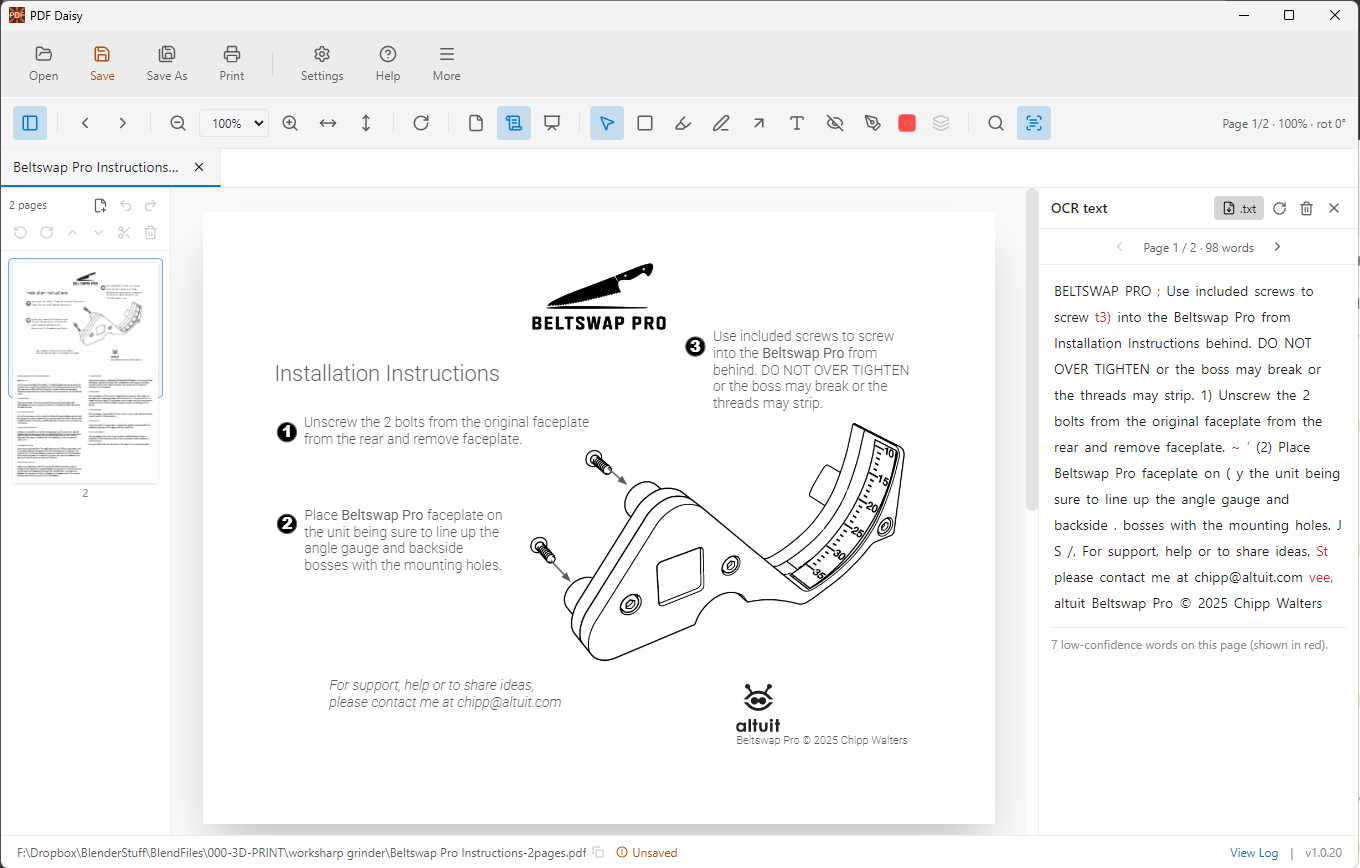
PDF Daisy Landing Page — Content Specification
This is the single source of truth for the landing page content: section structure, headlines, subheadlines, copy, image direction, layout, and calls to action.
Page Structure
The landing page is built from seven sections, in order:
- Hero Section — Main promise: free, private, offline PDF editing for Windows.
- Privacy & Local-Only Editing — No uploads, no account, no telemetry, no network requests. This is probably the biggest differentiator.
- Everyday PDF Tools — The practical tools people expect: viewing, tabs, annotations, highlights, signatures, printing, zoom, rotate, and navigation.
- OCR & Search — The “power user” section: offline OCR, searchable scans, text export, and find.
- Organize, Export & Rebuild PDFs — Page management and file operations: merge, extract, reorder, rotate, image export, image-only PDF, import image folders.
- Secure Redaction — Mark sensitive content, then export an image-only PDF so private information is burned out of the shared copy — not just covered by a box.
- Final Call to Action — A clear closing invitation to download, try the beta, or support the project.
This structure works because it starts with the big promise, proves the privacy angle, then walks through the useful feature groups before ending with action.
Section 1 — Hero Section
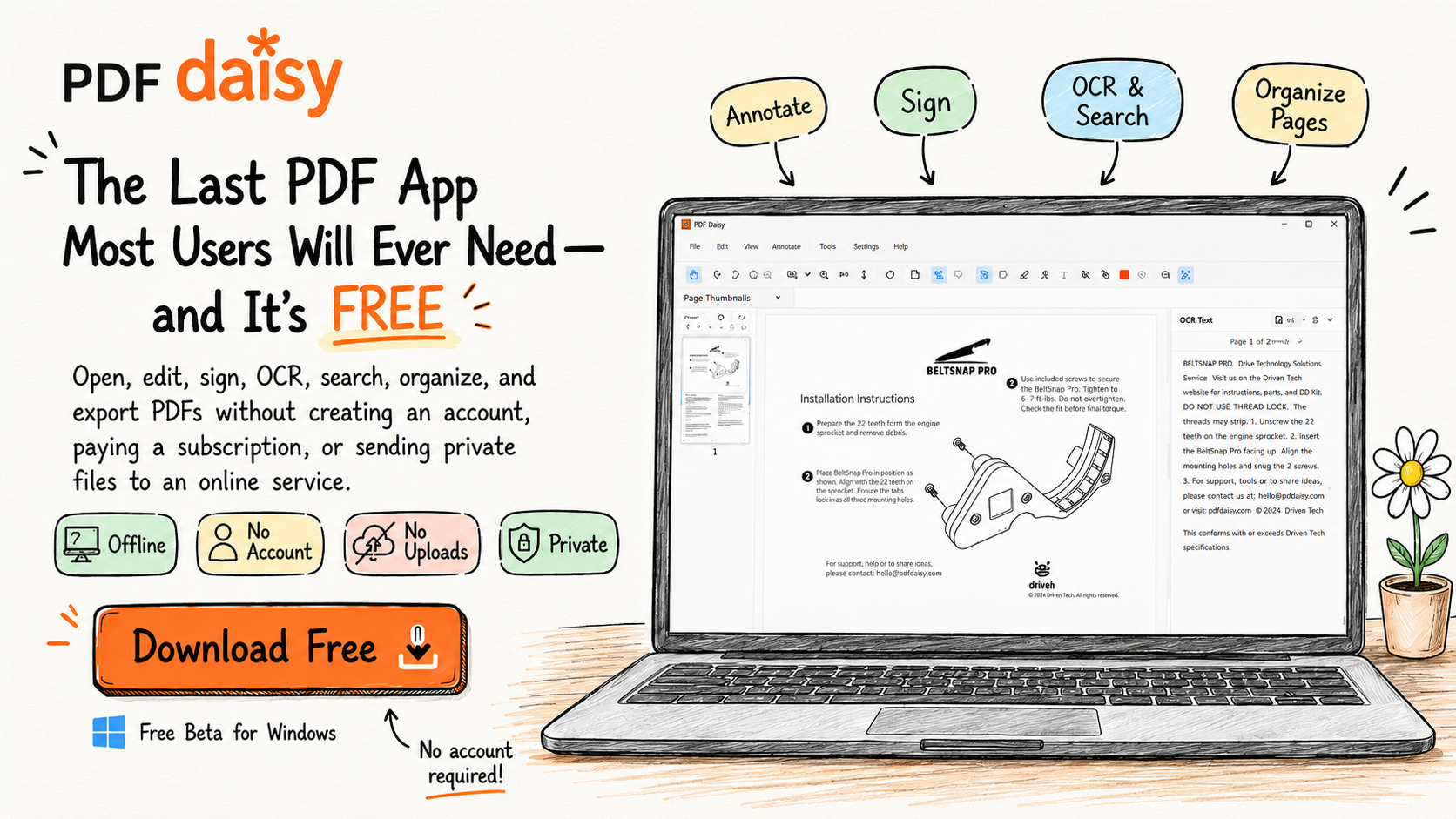
Headline: The Last PDF App Most Users Will Ever Need — and It’s FREE
Subheadline: Open, edit, sign, OCR, search, organize, and export PDFs without creating an account, paying a subscription, or sending private files to an online service.
Section copy: None.
CTA: Download Free
Section 2 — Privacy & Local-Only Editing
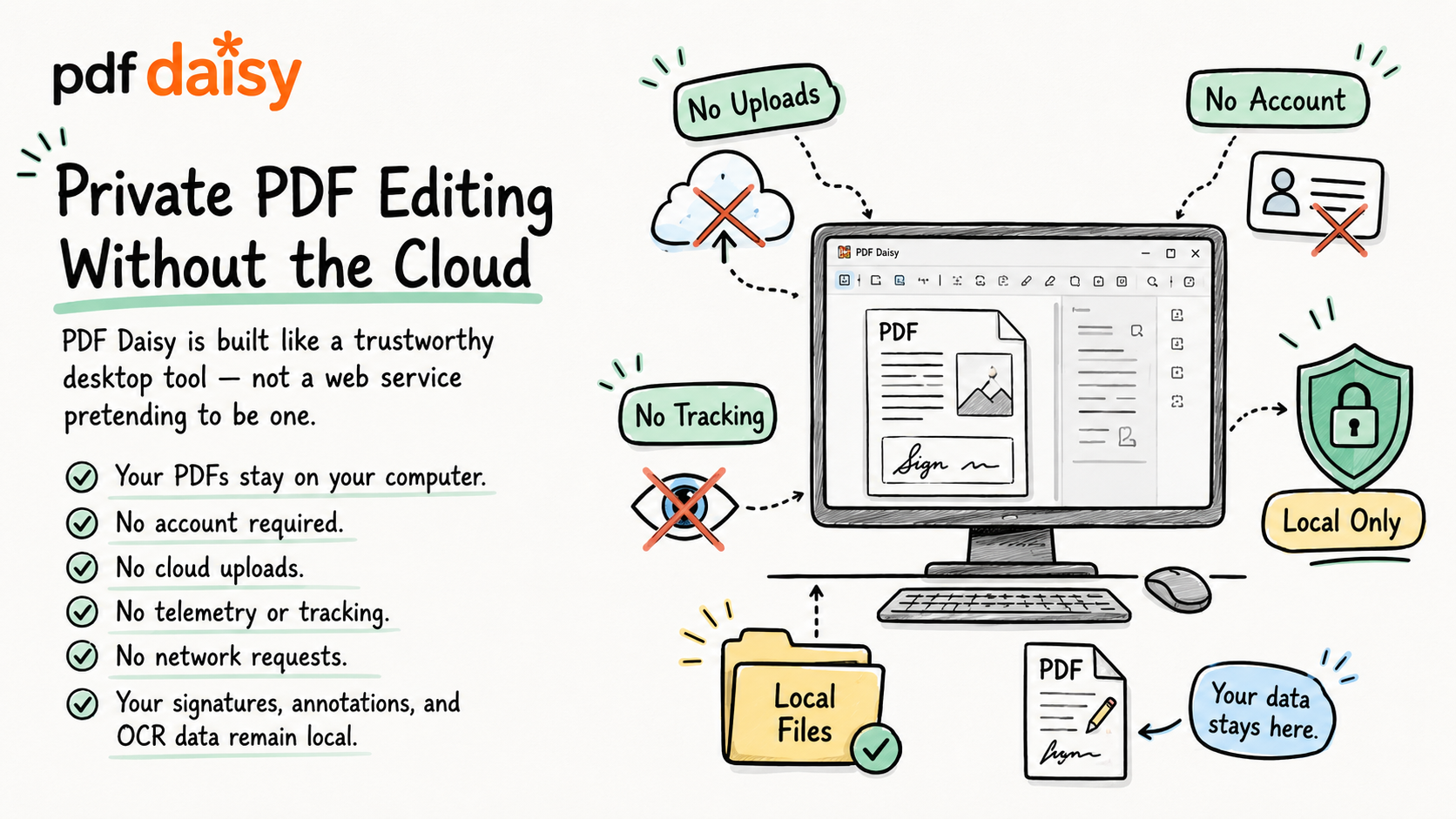
Headline: Private PDF Editing Without the Cloud
Subheadline: PDF Daisy is built like a trustworthy desktop tool — not a web service pretending to be one.
Section copy:
- Your PDFs stay on your computer.
- No account required.
- No cloud uploads.
- No telemetry or tracking.
- No network requests.
- Your signatures, annotations, and OCR data remain local.
Suggested image idea: A clean desktop app screenshot with a subtle “local-only” privacy visual, such as a small shield, locked folder, or computer icon.
Rough visual notes: Show PDF Daisy running on a Windows desktop with a document open. Add simple callouts like “No uploads,” “No account,” and “Runs locally.”
Layout concept: Two-column layout: copy and privacy bullets on the left, product screenshot or privacy-focused app visual on the right.
CTA: No CTA needed in this section.
Section 3 — Everyday PDF Tools
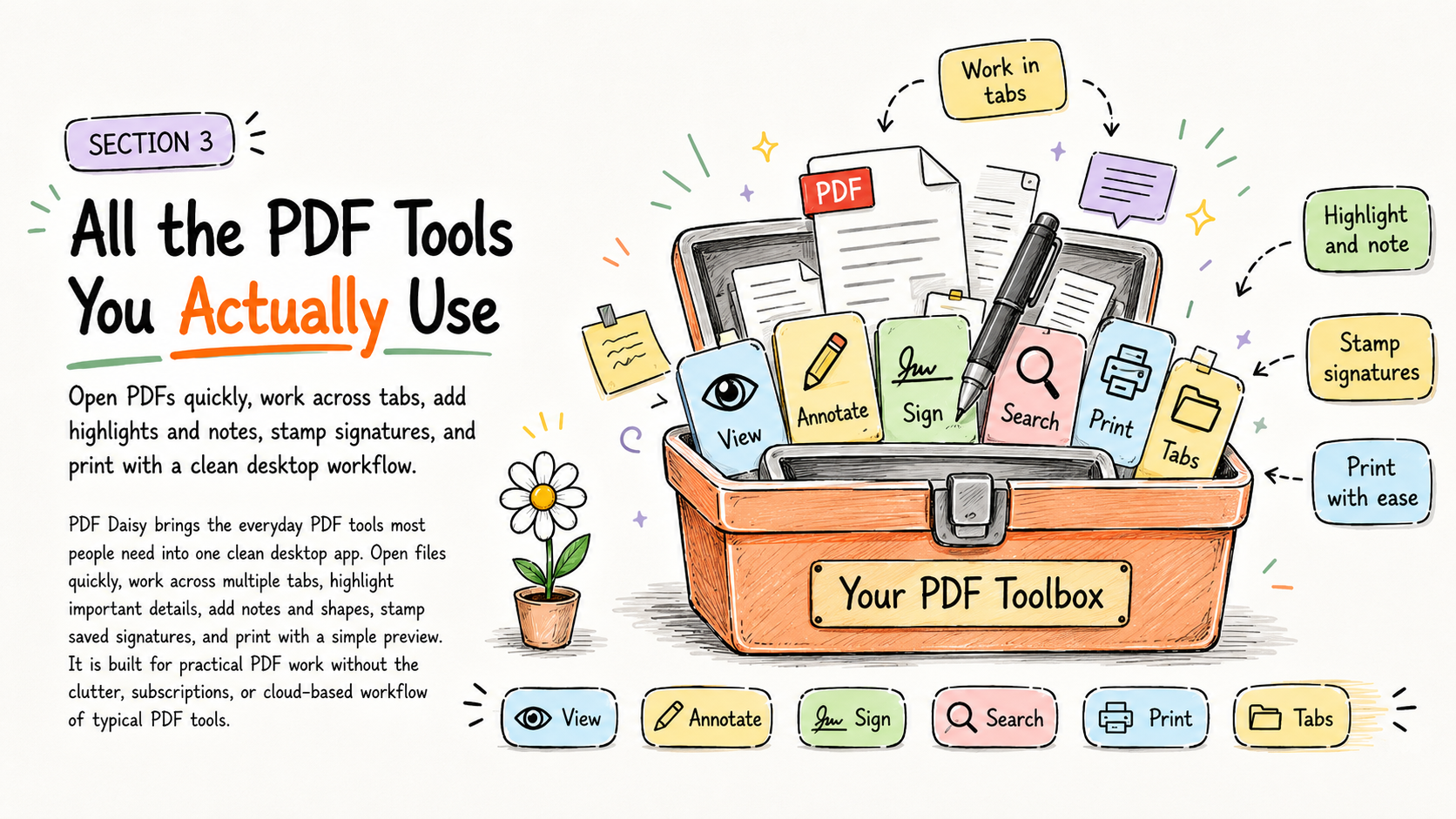
Headline: All the PDF Tools You Actually Use
Subheadline: Open PDFs quickly, work across tabs, add highlights and notes, stamp signatures, and print with a clean desktop workflow.
Section copy: PDF Daisy brings the everyday PDF tools most people need into one clean desktop app. Open files quickly, work across multiple tabs, highlight important details, add notes and shapes, stamp saved signatures, and print with a simple preview. It is built for practical PDF work without the clutter, subscriptions, or cloud-based workflow of typical PDF tools.
Suggested image idea: A product screenshot showing PDF Daisy with a PDF open, annotation tools visible, and a signature or highlight on the page.
Layout concept: Feature-card layout with 3–4 small cards, each focused on a common task: View, Mark Up, Sign, Print.
CTA: No CTA needed in this section.
Section 4 — OCR & Search
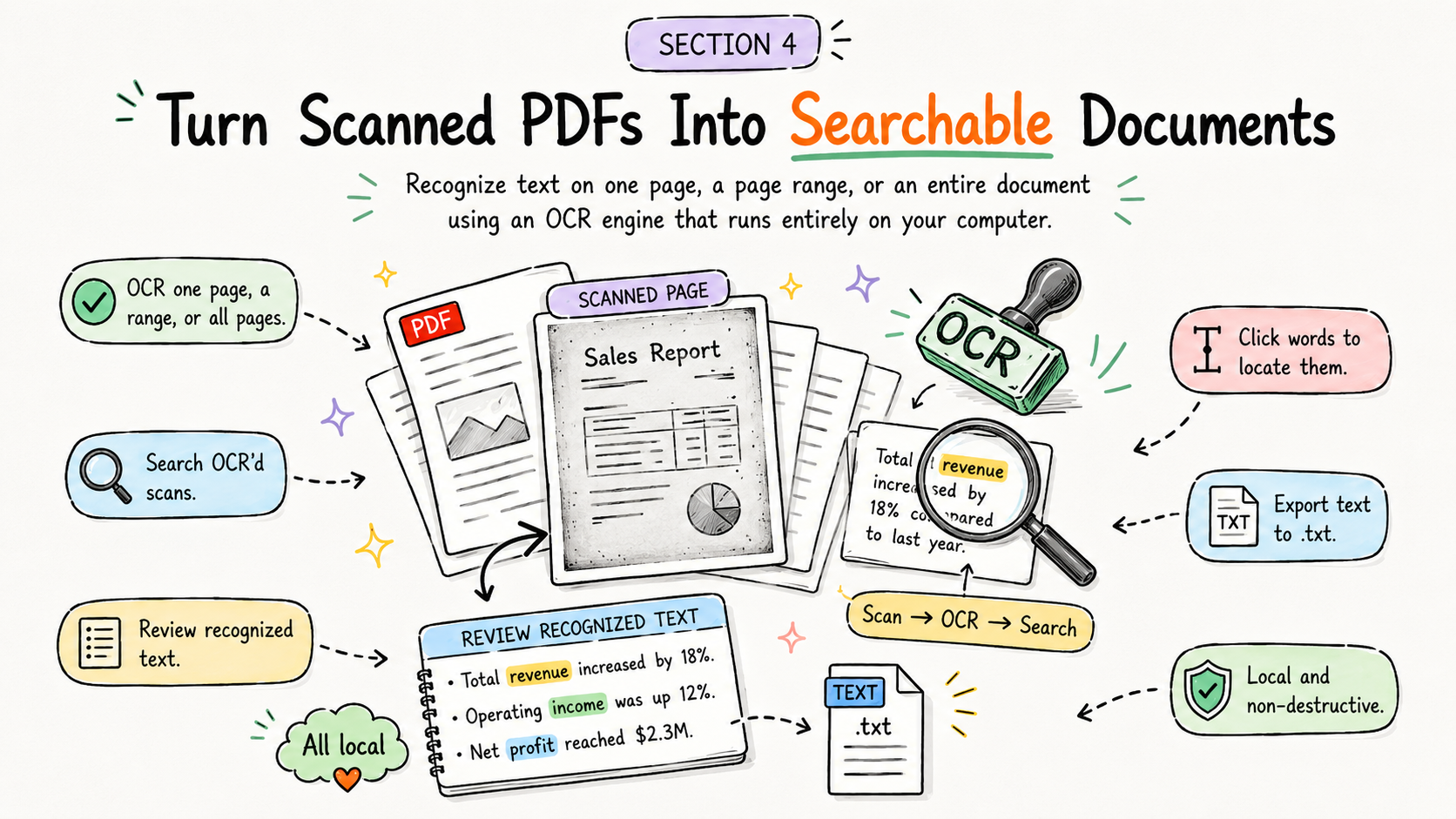
Headline: Turn Scanned PDFs Into Searchable Documents
Subheadline: Recognize text on one page, a page range, or an entire document using an OCR engine that runs entirely on your computer.
Section copy:
- Run OCR on a single page, a page range, or the whole document.
- Search regular PDFs and OCR’d scans from the same find bar.
- Review recognized text by page in the OCR sidebar.
- Click words to locate them directly on the PDF.
-
Export recognized text to a
.txtfile. - Keep OCR work local and non-destructive.
Suggested image idea: A screenshot of the OCR sidebar open next to a scanned PDF, with recognized text visible and a highlighted word on the page.
Rough visual notes: Show a scanned document becoming searchable, with subtle callouts like “Offline OCR,” “Search scans,” and “Export text.”
Layout concept: Copy on the left, OCR screenshot on the right. Use a small “Before: scanned page / After: searchable text” visual if available.
CTA: No CTA needed in this section.
Section 5 — Organize, Export & Rebuild PDFs
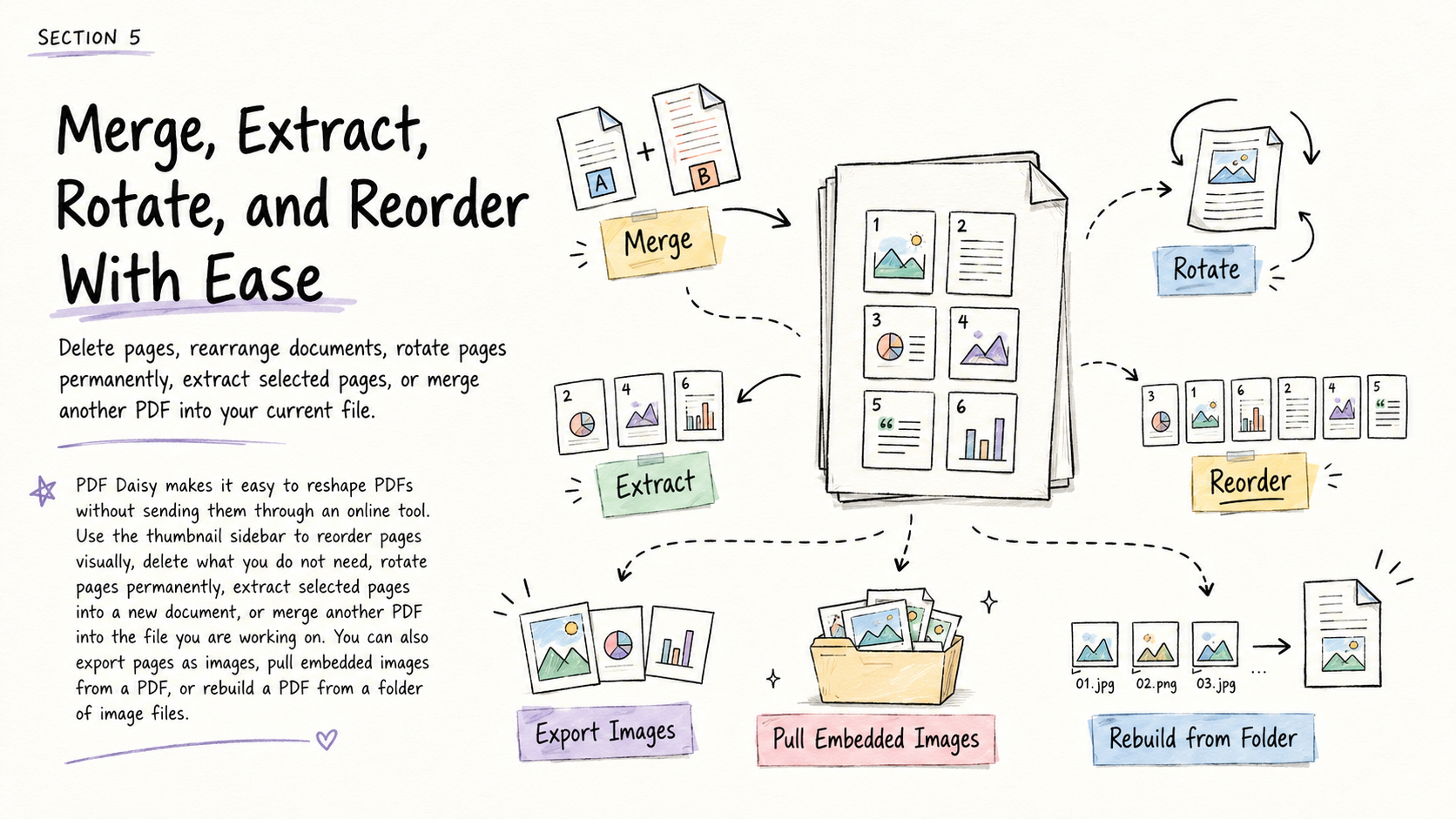
Headline: Merge, Extract, Rotate, and Reorder With Ease
Subheadline: Delete pages, rearrange documents, rotate pages permanently, extract selected pages, or merge another PDF into your current file.
Section copy: PDF Daisy makes it easy to reshape PDFs without sending them through an online tool. Use the thumbnail sidebar to reorder pages visually, delete what you do not need, rotate pages permanently, extract selected pages into a new document, or merge another PDF into the file you are working on. You can also export pages as images, pull embedded images from a PDF, or rebuild a PDF from a folder of image files.
Suggested image idea: A screenshot of the page thumbnail sidebar with selected pages, reorder controls, and merge/extract tools visible.
Layout concept: Wide screenshot-led section with the paragraph underneath or beside it. The visual should emphasize page thumbnails and document organization.
CTA: No CTA needed in this section.
Section 6 — Secure Redaction
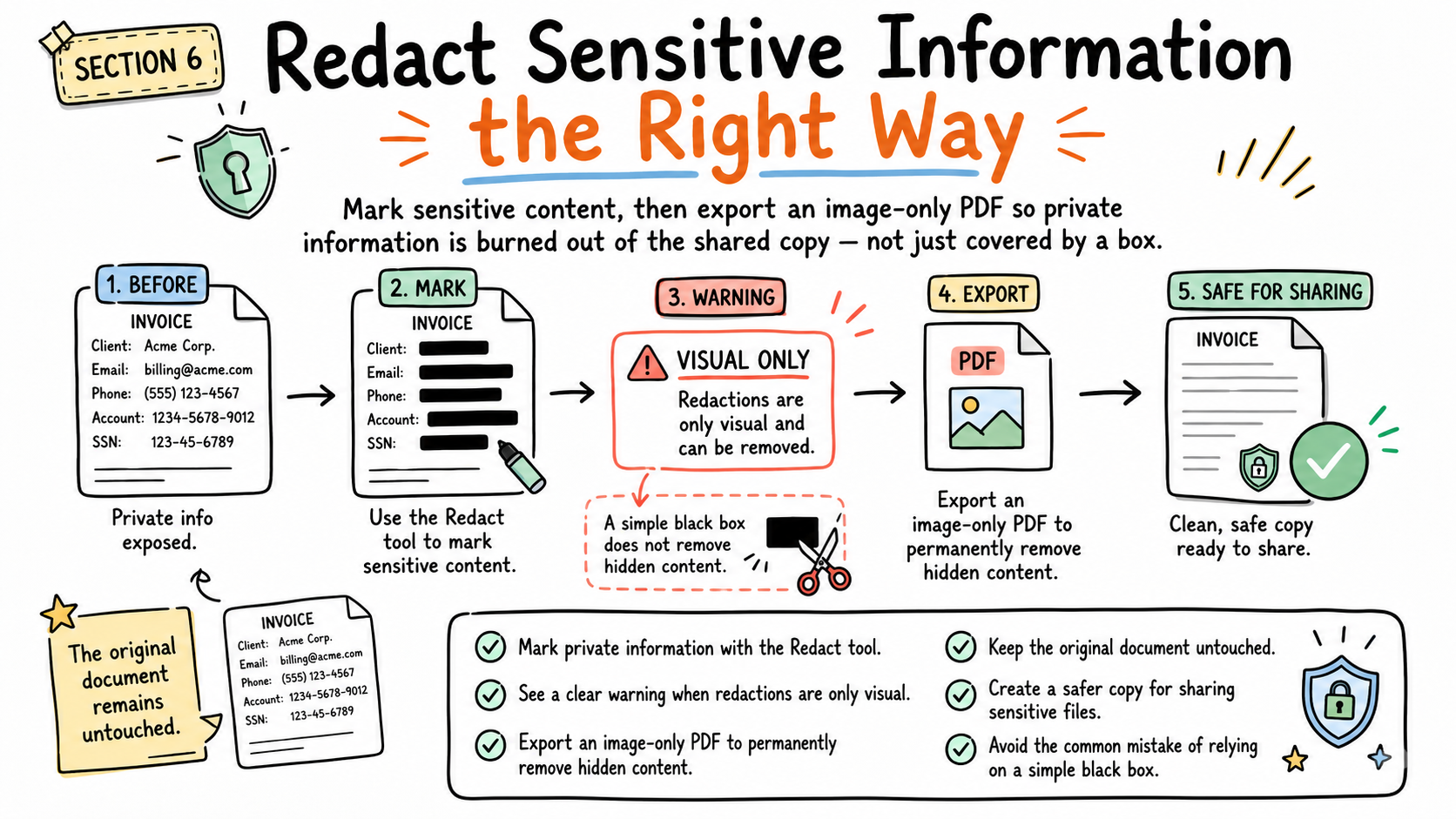
Headline: Redact Sensitive Information the Right Way
Subheadline: Mark sensitive content, then export an image-only PDF so private information is burned out of the shared copy — not just covered by a box.
Section copy:
- Mark private information with the Redact tool.
- See a clear warning when redactions are only visual.
- Export an image-only PDF to permanently remove hidden content.
- Keep the original document untouched.
- Create a safer copy for sharing sensitive files.
- Avoid the common mistake of relying on a simple black box.
Suggested image idea: A screenshot showing a redacted document with the redaction warning visible, plus the export-as-image-only workflow.
Layout concept: Two-column layout: redaction explanation on one side, screenshot or before/after redaction visual on the other.
CTA: No CTA needed in this section.
Section 7 — Final Call to Action
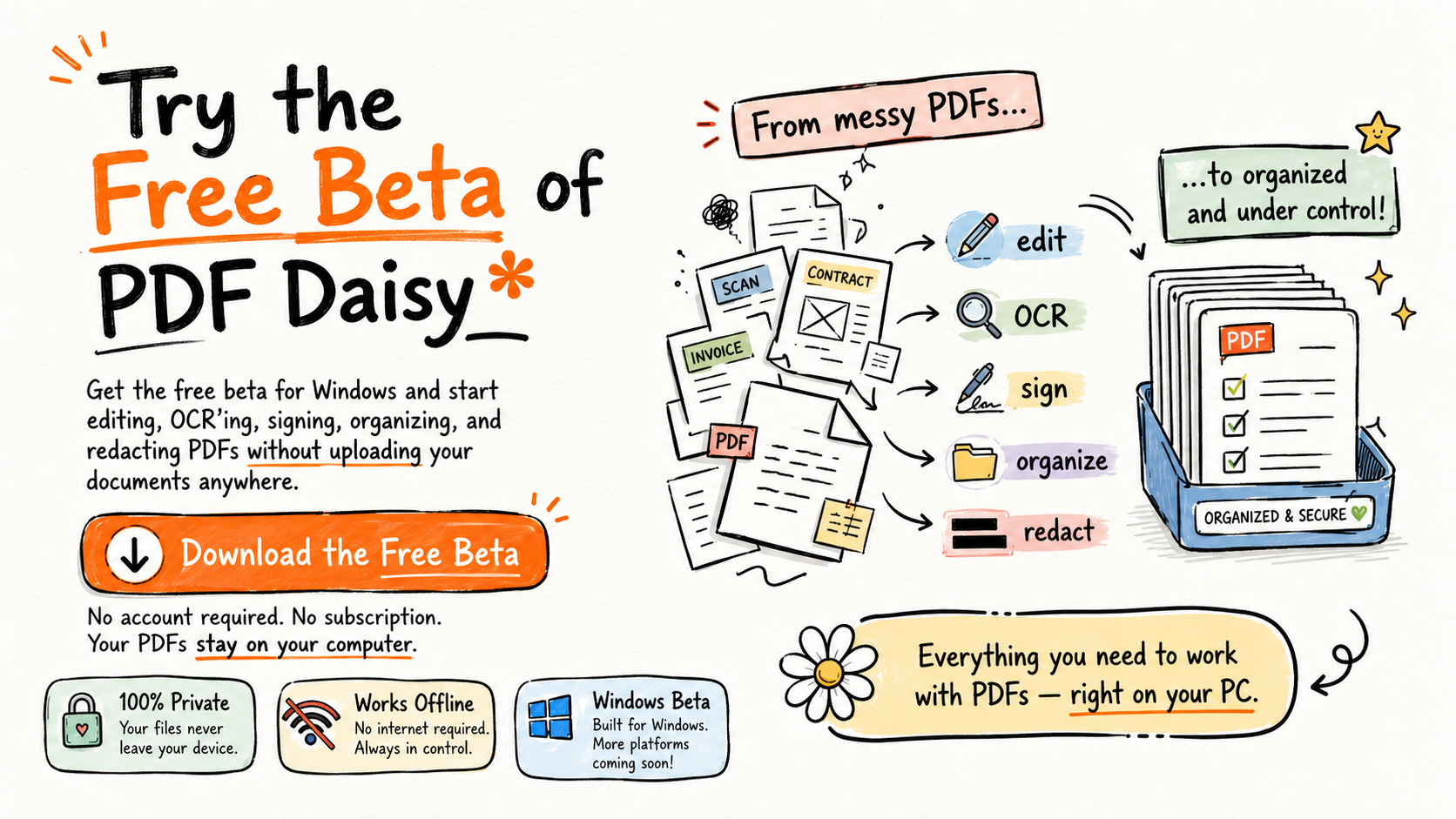
Headline: Try the Free Beta of PDF Daisy
Subheadline: Get the free beta for Windows and start editing, OCR’ing, signing, organizing, and redacting PDFs without uploading your documents anywhere.
Section copy: PDF Daisy is in beta, and it is ready for real-world PDF work. Download it free, try it with your own documents, and help shape a privacy-first PDF app built for people who want powerful tools without subscriptions, accounts, or cloud uploads.
CTA:
- Button text: Download the Free Beta
- Supporting line: No account required. No subscription. Your PDFs stay on your computer.