[brand-header]

# PDF Daisy — User Manual
(c)2026 Chipp Walters, Altuit Inc.
**PDF Daisy** is a privacy-first, **offline** desktop PDF toolkit for viewing, annotating, signing, recognizing text in, and organizing PDF documents — entirely on your own machine. Nothing you open is ever uploaded, no account is required, and the app makes no network requests.
- **Version:** 1.0.30
- **Platforms:** Windows and macOS (Apple Silicon) — desktop
- **Default window:** 1400 × 900
---
## Table of contents
1. [Getting started](#getting-started)
2. [The interface](#the-interface)
3. [Opening documents & recent files](#opening-documents--recent-files)
4. [Working with tabs](#working-with-tabs)
5. [Viewing & navigation](#viewing--navigation)
6. [Slideshow / presentation mode](#slideshow--presentation-mode)
7. [Annotations](#annotations)
8. [Redaction](#redaction)
9. [Signature library & stamping](#signature-library--stamping)
10. [Find in document](#find-in-document)
11. [OCR — recognize text in scans](#ocr--recognize-text-in-scans)
12. [Layers](#layers)
13. [Page operations](#page-operations)
14. [The More menu — images & raster export](#the-more-menu--images--raster-export)
15. [Saving — the sidecar model](#saving--the-sidecar-model)
16. [Printing](#printing)
17. [Preferences & theme](#preferences--theme)
18. [Status bar](#status-bar)
19. [About, logs & diagnostics](#about-logs--diagnostics)
20. [Keyboard shortcuts](#keyboard-shortcuts)
21. [Privacy & offline behavior](#privacy--offline-behavior)
---
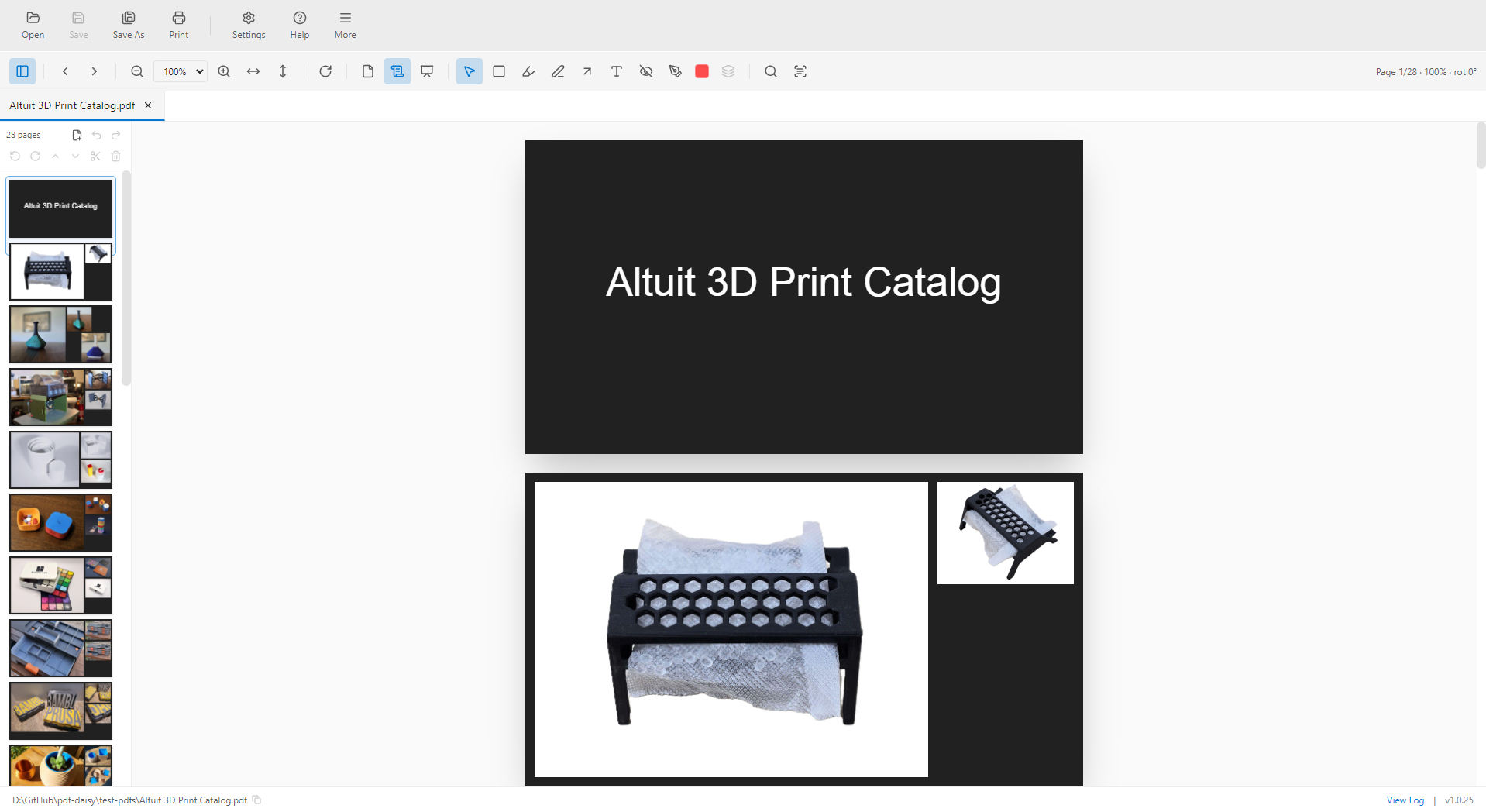
## Getting started
When you launch PDF Daisy with no document open, you see the **Welcome screen**:
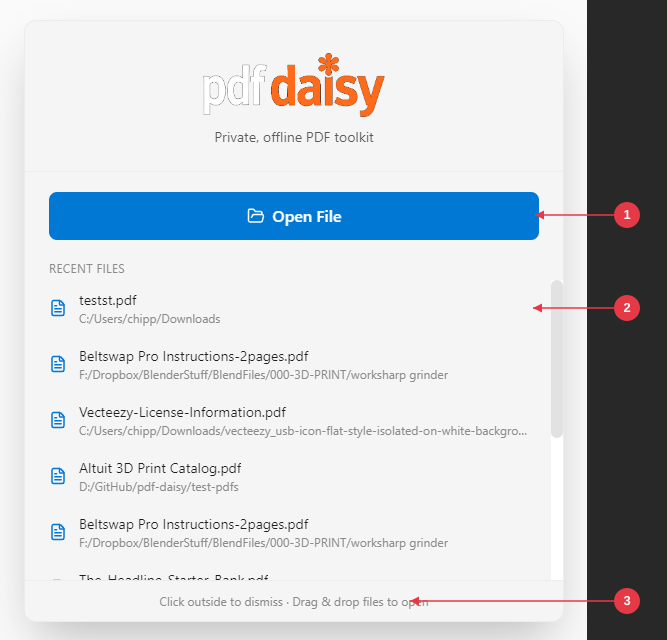
1. **Open File** — opens a file picker.
2. **Recent files** — your last 10 opened files; click any to reopen it.
3. **Drag & drop hint** — drop one or more PDFs from your file manager onto the window to open them.
- **Open File** — opens a file picker.
- **Recent files** — your last 10 opened files; click any to reopen it.
- **Drag & drop** — drop one or more PDFs from your file manager onto the window to open them.
- Click outside the welcome card (or open a file) to dismiss it.
You can also open PDF Daisy by double-clicking a `.pdf` file in Windows Explorer (or the macOS Finder) if the app is set as the file handler — it launches and opens that file directly.
---
## The interface
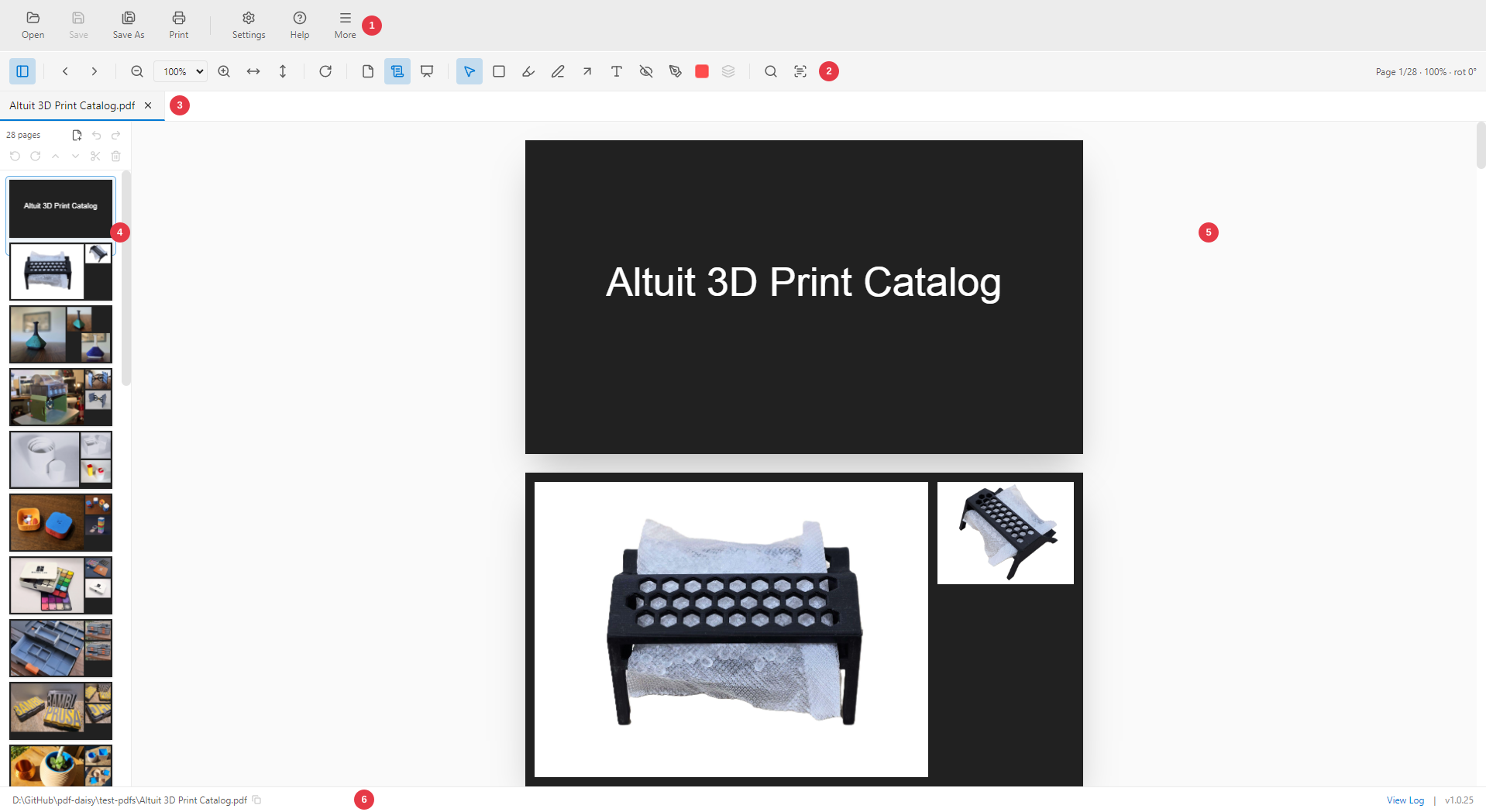
1. **Top toolbar** — Open, Save, Save As, Print, Settings, Help, and More.
2. **View toolbar** — navigation, zoom, fit, rotate-view, view modes, annotation tools, flatten, find, OCR.
3. **Tab bar** — one tab per open document.
4. **Pages sidebar** — page thumbnails + the page-operations toolbar.
5. **Document area** — the current page(s); drag PDFs here to open new tabs.
6. **Status bar** — file path (click to copy), unsaved indicator, View Log, version.
From top to bottom, the window is laid out as:
| Area | What it contains |
|------|------------------|
| **Top toolbar** | Open, Save, Save As, Print, Settings (preferences), Help (About), and **More** (the overflow menu — image export/import and image-only PDF) |
| **Tab bar** | One tab per open document (appears once a file is open) |
| **View toolbar** | Thumbnail toggle, page navigation, zoom, fit, rotate-view, view mode + slideshow, annotation tools (incl. **Redact**) + color picker, flatten, find, OCR, and **Layers** (only for PDFs that have layers) |
| **Pages sidebar** | Page thumbnails + the page-operations toolbar (left side) |
| **Document area** | The current page(s); drag PDFs here to open new tabs |
| **OCR sidebar** | (Right side, when OCR is run/open) recognized text by page |
| **Layers panel** | (Right side, layered PDFs only) show, hide, or remove the PDF's layers |
| **Status bar** | File path (click to copy), unsaved indicator, View Log, version |
The interface uses a themeable color system — Light by default; Dark and "follow System" are available in [Preferences](#preferences--theme).
### The More menu (top toolbar)
The **More** button on the top toolbar (just right of **Help**) is the single overflow menu for the image / raster actions:
- **Export page as PNG/JPG…** — save the current page, or every page, as image files.
- **Export all images…** — save every image *embedded inside* the PDF to a folder.
- **Import image folder as PDF…** — build a new PDF from a folder of images, one per page.
- **Export as image-only PDF…** — rasterize every page into an image-only PDF (this is what makes [redactions](#redaction) permanent).
All four are covered in [The More menu — images & raster export](#the-more-menu--images--raster-export).
> Save As, Print, and About all live on the **top toolbar** directly. Flatten has its own button in the view toolbar (the stack icon) next to the annotation tools.
---
## Opening documents & recent files
- **Open** (top toolbar) — pick a PDF from disk.
- **Drag and drop** — drag one or more PDF files from your file manager onto the document area. A **"Drop PDF to open"** overlay appears; release to open them. Dropping multiple PDFs opens each in its own tab. (Non-PDF files are ignored.)
- **Right-click the Open button** — pops up the **Recent files** menu. Pick a recent file, or choose **Clear recent files**.
- Files you open are added to the recent list automatically (up to 10).
- Opening a file that is already open simply switches to its existing tab rather than opening a duplicate.
When you reopen a PDF you've previously annotated or OCR'd, PDF Daisy automatically restores those layers from the document's sidecar file (see [Saving — the sidecar model](#saving--the-sidecar-model)). If the PDF was modified outside PDF Daisy since the sidecar was written, you'll get an **"Outdated PDF Daisy data"** warning and the layers are ignored.
---
## Working with tabs
PDF Daisy is multi-document — each open PDF gets its own tab in the tab bar.
- **Click a tab** to make it active.
- **Click the ✕** on a tab (or **middle-click** the tab) to close it.
- A **dot** on a tab marks **unsaved changes** in that document (the Save button on the toolbar also turns yellow when there are unsaved changes).
- Each tab keeps its own view state (page, zoom, rotation, view mode) and its own annotations + OCR.
---
## Viewing & navigation
The **view toolbar** (above the document) provides:
- **Toggle thumbnails** — show/hide the left Pages sidebar.
- **Previous / Next page** — step through pages.
- **Zoom out / Zoom level / Zoom in** — pick a preset (25%–200%) or zoom incrementally. The current custom zoom is added to the list when it isn't a preset.
- **Ctrl + mouse wheel — zoom about the cursor.** Hold **Ctrl** (or **⌘**) and scroll the wheel to zoom in (scroll up) and out (scroll down), centered on wherever your pointer is — the point under the cursor stays put. Works in both single-page and continuous views, and with trackpad pinch. A plain wheel (no modifier) scrolls as usual.
- **Fit to width** — scale the page to the window width.
- **Fit to height** — scale the whole page to the window height.
- **Rotate view 90° clockwise** — rotates the on-screen view only. This is a *temporary viewing* rotation; it is **not saved** into the file. (To rotate pages permanently, use the page-operations **Rotate** in the Pages sidebar — see [Page operations](#page-operations).)
- **Single page** vs **Continuous scroll** view modes.
- **Slideshow** — full-screen presentation mode (see below).
- **Layers** — appears only when the PDF has layers; opens the Layers panel (see [Layers](#layers)).
### Selecting & copying text
With the **Select** tool (the arrow — the default), drag across any text on a page to select it, then press **Ctrl + C** (or **⌘C**) to copy. Selection works on any PDF with embedded text at every zoom level and view rotation.
> Text selection is available whenever the **Select** tool is active. Switching to a drawing tool (Rectangle, Highlight, Pen, …) turns the pointer over to that tool instead — switch back to Select to select text again.
>
> Scanned pages have no embedded text to select — run [OCR](#ocr--recognize-text-in-scans) to recognize it; the OCR review panel has its own copy/export.
### Clicking links
Web links in a PDF open in your **default browser** — click them with the **Select** tool. Hovering a link shows a subtle highlight and a tooltip with the destination URL, so you can see where a link goes before you click.
Two kinds of links work:
- **Real hyperlinks** embedded in the PDF by its author.
- **Plain-text URLs** — many PDFs (especially "printed to PDF" documents) contain web addresses as ordinary text with no actual link inside the file. PDF Daisy detects these automatically and makes them clickable, including URLs that wrap across multiple lines.
For safety, only regular web addresses (`http://` / `https://`) are opened, always in your system browser — never inside the app.
### Thumbnails / Pages sidebar
The left sidebar shows a thumbnail of every page.
- **Click a thumbnail** to jump to (and view) that page. In continuous mode the page scrolls into view.
- The thumbnail toolbar at the top is also where all **page operations** live ([Page operations](#page-operations)).
### The page counter
On the right side of the view toolbar, a small label shows **Page X/N · ZOOM% · rot DEG°**.
- In **single-page** view it's the page on display.
- In **continuous scroll** view it tracks the page you're **currently looking at** — it follows your scroll position automatically, so it always reflects the page near the middle of your viewport, not just whichever you last clicked or hit Next/Previous on.
- Hitting **Next** / **Previous** when the next page is already partly on screen just bumps the counter — it won't snap-scroll a page that's already visible.
### Long-document performance
Continuous mode and the thumbnail sidebar render only the pages currently in (or near) your view; pages that scroll out of view release their canvas memory immediately. Opening, scrolling, zooming, and rotating a 500-page document feels the same as a 5-page one.
---
## Slideshow / presentation mode
The **Slideshow** button (or **F5**) enters full-screen presentation mode: one page at a time, no chrome, your annotations included.
- **← / →** or click — previous / next page.
- **Esc** or **F5** again — exit.
---
## Annotations
Select an annotation tool from the view toolbar, then draw directly on the page. Annotations are a separate, **editable** layer kept in the document's own coordinates, so they stay aligned at any zoom or view rotation.
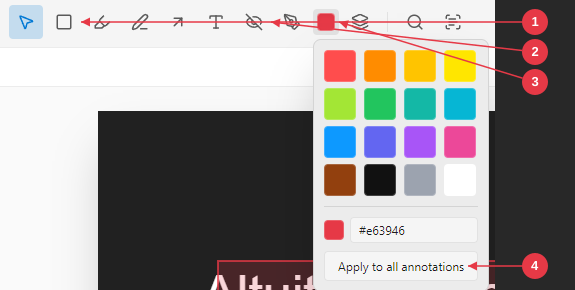
1. **Annotation tools** — Select, Rectangle, Highlight, Freehand pen, Arrow, Text box.
2. **Redact tool** — draw an opaque black box (see [Redaction](#redaction)).
3. **Color swatch** — opens the 16-color palette + custom hex field.
4. **Apply to all annotations** — recolor every annotation at once.
| Tool | What it does |
|------|--------------|
| **Select** (arrow) | Click an annotation to select it; drag to move; drag a corner handle to resize. Also the mode for [selecting text](#selecting--copying-text) and [clicking links](#clicking-links) on the page. |
| **Rectangle** | Drag to draw a translucent box. |
| **Highlight** (marker) | Drag to swipe a translucent marker over text or an area. Uses a multiply blend so the text underneath stays readable. |
| **Freehand pen** | Drag to draw a freehand line. |
| **Arrow** | Drag from tail to head. **Right-click** an arrow to change its size (Small / Medium / Large). |
| **Text box** | Click anywhere to start typing; click outside to commit; double-click an existing text box to edit it. To change the text size afterwards, switch to **Select**, click the text box, and drag its corner handle to scale the font. |
| **Redact** (eye-with-slash icon) | Drag to draw an opaque black box over content you want hidden. See [Redaction](#redaction) — a redaction box is only *secure* once you export as an image-only PDF. |
| **Signature stamp** (pen-tip icon) | Click on a page to drop your selected saved signature. See [Signature library & stamping](#signature-library--stamping). |
### Color picker
The colored swatch next to the annotation tools opens a 16-color palette plus a custom hex field.
- Picking a color sets it as the **active color** for new marks of the current tool.
- If an annotation is **selected**, picking a color **recolors that annotation** and updates the active color in one step.
- **Apply to all** (in the picker popover) recolors every annotation in the document at once. Not undoable.
- Highlight has its **own default color** (yellow) so switching between Highlight and other tools doesn't carry colors back and forth.
### Selecting, moving, resizing, deleting
- **Select** tool: click a mark to select it; corner handles appear for rectangles, highlights, stamps, and text boxes. Drag the mark to move it. For arrows, the two endpoint handles let you re-aim either end. For text boxes, dragging the corner handle **scales the font size** (6–144 pt).
- **Delete / Backspace** — remove the selected annotation.
- Selecting an empty spot deselects.
### Flatten annotations
The **Flatten** button (stack icon) in the view toolbar bakes every annotation in the current document into the page content right now, instead of waiting until you choose to. After confirming, the annotations become permanent page content and are removed from the editable layer. This is **undoable** with **Ctrl+Z** (which restores them as editable annotations). The button is dimmed when the document has no annotations.
> **Save no longer flattens.** Annotations live in a sidecar file beside your PDF and stay editable across sessions. Use Flatten only when you want them inseparable from the page (e.g. before sending the PDF to someone who shouldn't be able to remove them). **Save As** also offers to flatten for you — see [Saving your work](#saving-your-work).
**Encrypted PDFs.** Some PDFs (many government and insurance forms) are internally encrypted, which prevents drawing new content into their pages. When you flatten one of these, PDF Daisy tells you and offers a fallback: **convert every page to an image** with your annotations painted in. The result looks identical (annotations included) and opens in any PDF viewer, but text is no longer selectable or searchable — the same trade-off as [Export as image-only PDF](#export-as-image-only-pdf). This too is undoable with **Ctrl+Z**.
---
## Redaction
Redaction blacks out content you don't want others to see. PDF Daisy gives you two parts: a **Redact tool** to mark what to hide, and **Export as image-only PDF** to make that removal **permanent and secure**.
> ⚠️ **A black box on its own is not secure.** Like every other annotation, a redaction box just *covers* the content — the original text is still in the file and can be selected, copied, or extracted by anyone. PDF Daisy shows a red warning banner the whole time any redaction exists, reminding you that the redaction is not secure until you export it. **Redaction is only real once you Export as image-only PDF** (below), which rasterizes the pages so the hidden content no longer exists.
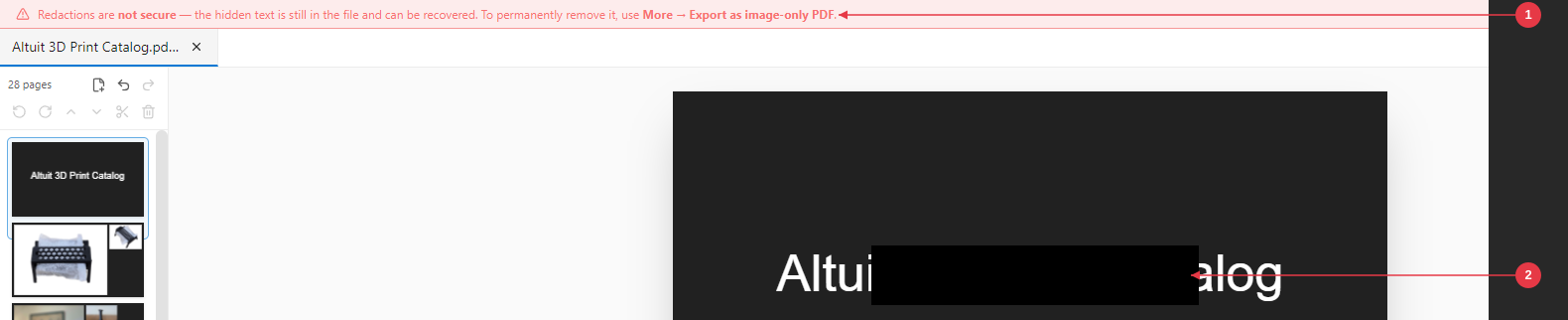
1. **"Not secure" banner** — shown the whole time any redaction exists; reminds you to export.
2. **Redaction box** — an opaque black box covering content (not yet secure on its own).
### Marking redactions
- **Redact tool** (eye-with-slash icon, in the annotation toolbar) — drag to draw an opaque black box over anything you want hidden. Move/resize it like any other mark with the Select tool; remove it with Delete.
- **Redact every match of a search** — open [Find](#find-in-document) (**Ctrl+F**), type a term, then click the **Redact all** button (eye-with-slash) in the find bar. A black box is placed over **every** match in the document at once. (You'll be asked to confirm.)
While any redaction box exists, a **red "not secure" banner** appears under the toolbar.
### Making redactions permanent (secure)
Choose **More → Export as image-only PDF…** (top toolbar). PDF Daisy:
1. Renders every page to an image **with the black boxes burned into the pixels**, so the content underneath is gone — not merely covered. All your other annotations (text, arrows, highlights, stamps…) are painted into the images too.
2. Rebuilds those images into a new PDF and prompts you to save it (defaulting to `-redacted.pdf`).
Because the exported PDF is made of page images, the redacted text **cannot be recovered** — but **all** text in the document becomes images too, so search and copy/paste won't work in the exported file. Your original document is left untouched.
> Use this whenever you need to share a document with information truly removed. For non-sensitive "marking up," the Redact tool alone (or Highlight) is fine — but never rely on the un-exported black box to hide secrets.
---
## Signature library & stamping
PDF Daisy keeps a small **signature library** of transparent PNGs you can stamp onto any page.
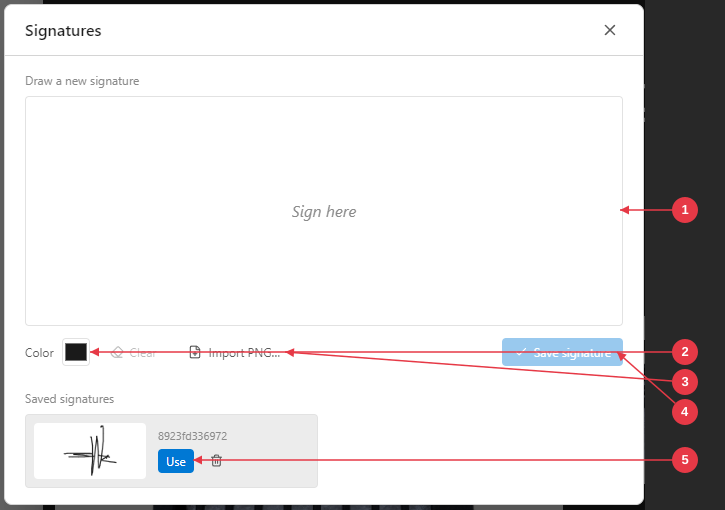
1. **Draw a new signature** — sign here with your mouse or pen.
2. **Color** — choose the ink color before drawing.
3. **Import PNG…** — import an existing signature image (auto-cropped to its ink).
4. **Save signature** — add it to your library.
5. **Use** — select a saved signature for stamping (trash deletes it).
### Creating signatures
1. Click the **Signature stamp** tool in the view toolbar. If you have no saved signatures yet, the **Signatures** modal opens automatically. If you already have signatures, the tool drops a small picker — choose **Manage signatures…** at the bottom to open the modal.
2. In the modal:
- **Sign here** — draw with your mouse/pen on the canvas (choose a color first, if you'd like).
- **Clear** — erase what you've drawn.
- **Import PNG…** — pick an existing PNG or JPEG (your signature is auto-cropped to its visible ink before saving).
- **Save signature** — adds it to your library.
3. Saved signatures appear at the bottom of the modal. Each has a **Use** button (selects it and closes the modal) and a **trash** button (deletes it). Signatures live in your user profile (Windows or macOS) and survive reinstalls.
### Stamping
With the Signature stamp tool active and a signature **armed** (the picker shows which one — click the tool again to switch), click on a page. The signature is dropped at the cursor at about **25%** of the page width, with the aspect ratio preserved.
- **Move** it: switch to the **Select** tool and drag it.
- **Resize** it: drag a corner handle — the aspect ratio is **locked** so it never stretches.
- **Delete** it: select and press Delete.
- On **Flatten** or after pdf-lib bakes the page (e.g. Save when bytes changed), the signature is embedded as an image into the PDF.
---
## Find in document
Press **Ctrl+F** (or click the **magnifying glass** in the view toolbar) to open the find bar.

1. **Search field** — type your term; matches highlight on every page.
2. **Match counter** — current / total, with next / previous.
3. **Redact all** — drop a black redaction box over every match.
4. **Close** — close the find bar (or press Esc).
- Type to search. Matches highlight on every page in yellow; the active match is **orange**.
- The bar shows **N / total** and **next / previous** buttons (or use Enter / Shift+Enter).
- The view jumps to the page of the active match.
- Search works on **regular PDFs** *and* on pages you've OCR'd — the index pulls from both sources. See [OCR](#ocr--recognize-text-in-scans) to recognize text in scanned pages first.
- **Redact all** (eye-with-slash button) — drops a black [redaction](#redaction) box over **every** match at once. (Remember: redactions aren't secure until you Export as image-only PDF.)
- Close the bar with the **✕** or Esc.
---
## OCR — recognize text in scans
PDF Daisy includes a **fully offline** OCR engine for scanned PDFs (Tesseract.js + English language data, all bundled — no network calls).
### Running OCR
Click the **OCR** button (text-scan icon) in the view toolbar. A scope picker appears:
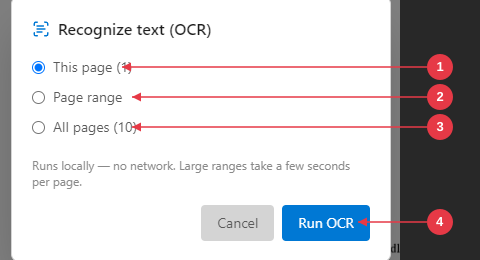
1. **This page** — OCR only the current page.
2. **Page range** — enter a from/to range.
3. **All pages** — OCR the whole document.
4. **Run OCR** — start recognition (runs locally; cancel anytime).
- **This page** (the current page)
- **Page range** — enter a from/to range
- **All pages**
Click **Run OCR**. A progress dialog shows page-by-page progress and a **Cancel** button. OCR results **accumulate** across runs — running OCR on a different range later adds those pages to what you already have.
### The OCR review panel
Once results exist, clicking the **OCR** button toggles a right-side **review panel** for the current page:
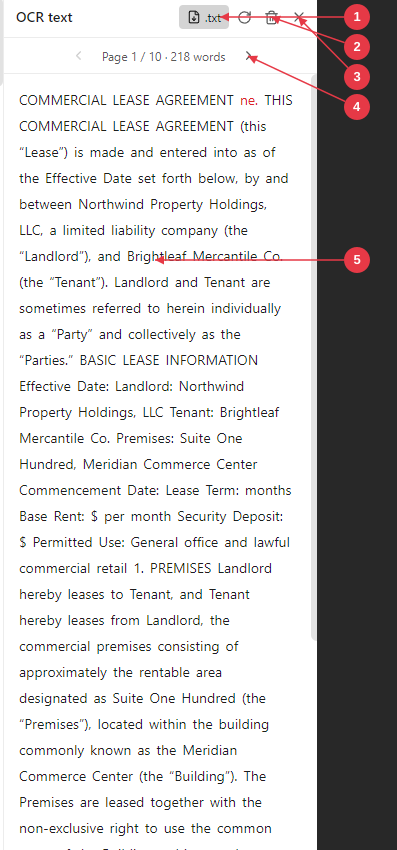
1. **Export…** — save all recognized text to a `.txt` file.
2. **Trash** — delete the entire OCR layer for this document.
3. **Close** — hide the panel without losing results.
4. **Page navigation** — step through pages; shows the per-page word count.
5. **Recognized text** — click a word to locate it on the page.
- The recognized text is shown in reading order.
- **Click a word** to locate it — that word's bounding box is highlighted in blue on the page.
- Low-confidence words are flagged so you can spot likely OCR errors.
- **◀ / ▶** step through pages; the panel updates to that page's text.
- **Export…** — save all recognized text to a `.txt` file (`--- Page N ---` separators).
- **Re-run** — open the scope picker again to OCR more pages.
- **Trash** — delete the entire OCR layer for this document (you'll be asked to confirm).
- **✕** — hide the panel without losing results.
OCR is **non-destructive** — it lives in the sidecar file beside your PDF (see [Saving](#saving--the-sidecar-model)) and never modifies the PDF itself.
> OCR runs locally on your CPU. Large ranges take a few seconds per page; cancel anytime.
---
## Layers
Some PDFs are built in **layers** (the PDF term is *optional content*) — sewing and craft patterns with one layer per size, architectural drawings, maps, and multilingual documents are common examples. When the open PDF has layers, a **Layers** button (stacked-squares icon) appears at the right end of the view toolbar. Click it to open the **Layers panel** on the right.
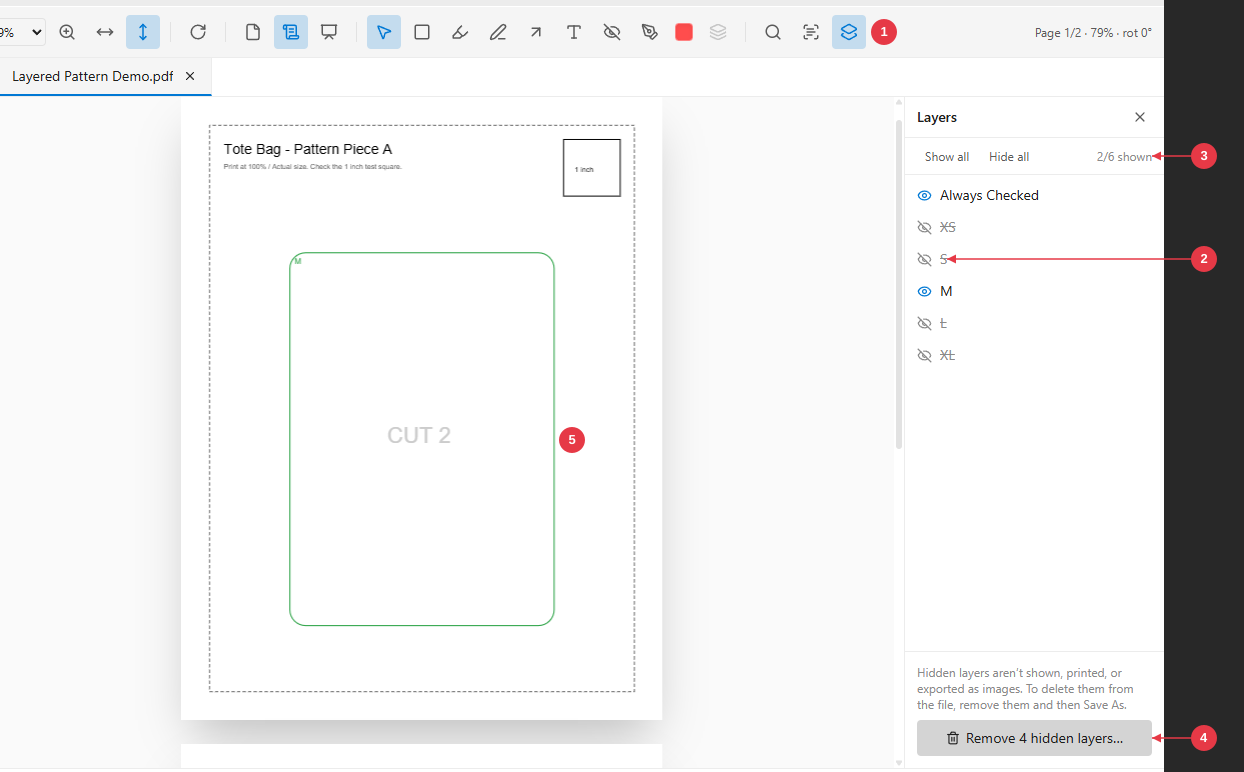
1. **Layers button** — opens/closes the Layers panel (only shown when the PDF has layers).
2. **Layer row** — click to hide or show that layer; hidden layers are struck through with a crossed-out eye.
3. **Show all / Hide all** and the **shown counter** (here 2 of 6 layers visible).
4. **Remove hidden layers…** — permanently deletes the hidden layers from the document (undoable).
5. **The page** — only the visible layers are drawn (here the shared *Always Checked* marks plus the **M** outline), and only they print.
### Showing and hiding layers
- Click a layer's **eye** to hide or show it. Hidden layers are dimmed and struck through in the list.
- **Show all** / **Hide all** — toggle every layer at once.
- The counter (for example **2/11 shown**) tells you how many layers are visible.
- Layers keep the document's own order and grouping; group headings are shown as small labels.
Hiding a layer is a **view setting** — the file isn't changed. Hidden layers are left out of everything PDF Daisy draws: the page view, thumbnails, the slideshow, **printing**, **Export page as PNG/JPG**, **Export as image-only PDF**, and OCR. So to print just one size of a sewing pattern, hide the other sizes and click **Print**.
### Removing hidden layers
**Remove hidden layers…** (bottom of the panel) permanently deletes every hidden layer — and everything drawn on it — from the document, keeping the visible layers and any content that isn't on a layer. You'll be asked to confirm, with the list of layers that will go. The page layout, scale, and everything else on the page stay exactly the same, and the remaining layers are set to visible by default in the saved file.
Like other page operations, this is **undoable** with **Ctrl+Z** (your show/hide choices come back too). Then use **Save As** to write the result to a new file — for example one file per size: hide everything except *Always Checked* and *XS*, remove the hidden layers, Save As `…_XS.pdf`, press **Ctrl+Z**, and repeat for the next size.
> Encrypted PDFs can't have layers removed, but you can still hide layers and print.
---
## Page operations
All page operations are in the **Pages sidebar** toolbar (toggle the sidebar with the thumbnail button if it's hidden). They let you delete, reorder, rotate, extract, and merge pages.
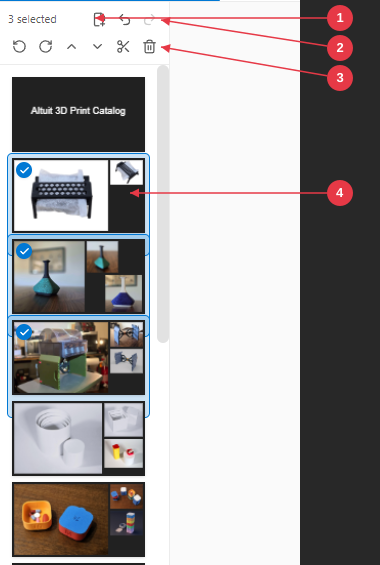
1. **Selection count + Merge** — how many pages are selected; Merge appends another PDF.
2. **Undo / Redo** — reverse or re-apply the last page edit.
3. **Selection actions** — rotate left/right, move up/down, extract, delete.
4. **Selected page** — a check badge marks each selected thumbnail.
### Selecting pages
- **Click** a thumbnail — selects that page (and views it).
- **Ctrl/Cmd + click** — add/remove a page from the selection (multi-select).
- **Shift + click** — select a range from the last clicked page to this one.
- Selected pages show a **check badge** and highlight; the toolbar shows **"N selected."**
### The Pages toolbar
The toolbar has two rows:
- **Top row:** page count / selection count, plus **Merge** and **Undo**.
- **Bottom row (act on the selection):** **Rotate left**, **Rotate right**, **Move up**, **Move down**, **Extract**, **Delete**.
The selection buttons are enabled once one or more pages are selected.
### Reordering pages
Two ways:
- **Drag and drop** — grab a thumbnail and drag it; an **insertion line** shows where it will land. Release to drop. If several pages are selected, dragging one moves the whole selected group together.
- **Move up / Move down** buttons — nudge the selected page(s) one slot at a time.
### Rotating pages (permanent)
Select pages and use **Rotate left** (−90°) or **Rotate right** (+90°). Unlike the view-toolbar rotate, this rotation is **baked into the pages** and saved with the file.
> **Note about annotations + rotate:** annotations are stored upright, so if a page you're rotating has annotations, PDF Daisy asks you to confirm. On confirm, those annotations are permanently **flattened** into the page before it's rotated. (You can still undo with **Ctrl+Z**.)
### Extracting pages
Select pages and click **Extract**. The chosen pages are copied into a **new untitled tab** (in ascending page order) that you can review, edit, and save independently. Any annotations on the extracted pages are flattened into the new document. Your original document is untouched.
### Merging another PDF
Click **Merge**, pick a PDF, and its pages are **appended** to the end of the current document. Save when you're ready to write the result to disk.
### Deleting pages
Select pages and click **Delete**. You'll be asked to confirm. Annotations on deleted pages are removed. A document must keep at least one page, so deleting every page is blocked.
### Undo & Redo
**Ctrl+Z** (or the **Undo** button in the Pages sidebar) reverses the most recent edit. **Ctrl+Shift+Z** (or **Ctrl+Y**, or the **Redo** button) re-applies what you just undid.
The unified undo/redo stack covers:
- **Page operations** — delete, reorder, rotate, flatten, merge
- **Annotation edits** — create / move / resize / recolor / delete (including text-box edits, arrow-size changes, signature stamp placement, and the color picker's **Apply to all**)
Undo also restores the unsaved indicator — if you undo the only edit since opening (or since the last Save), the Save button returns to clean.
Each document has its own stacks, capped at the last **50** edits each. Making a new edit clears the redo stack (you can't redo into a branch you've walked away from).
Some changes are intentionally **not** tracked: OCR runs / deletions, view state (zoom, page, theme), and `Save As`.
> Page operations are **non-destructive to disk**: they change only the in-memory working copy. The file on disk is not modified until you **Save** or **Save As**.
---
## The More menu — images & raster export
The **More** button on the top toolbar (right of **Help**) holds the image and raster actions. There are two different "export images" commands — they do different things, so the distinction matters:
- **Export page as PNG/JPG** rasterizes whole **pages** to image files (a picture of each page, text and all).
- **Export all images** pulls out the bitmap images **embedded inside** the PDF (photos, scans, logos) — not a picture of the page.
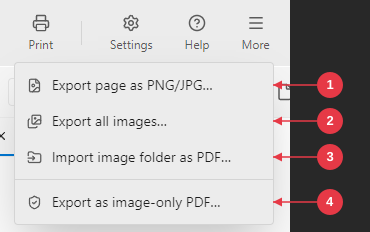
1. **Export page as PNG/JPG…** — save the current page, or every page, as image files.
2. **Export all images…** — save every image embedded inside the PDF to a folder.
3. **Import image folder as PDF…** — build a new PDF from a folder of images.
4. **Export as image-only PDF…** — rasterize every page (makes redactions permanent).
### Export page as PNG/JPG
Choose **More → Export page as PNG/JPG…**. A small dialog lets you pick:
- **Pages** — **This page** (the one you're on) or **All pages**.
- **Format** — **PNG** (lossless) or **JPG** (smaller files).
Then pick a destination folder. Each page is rendered to an image named `page-.png` / `.jpg`. A progress dialog tracks it, and you can **Open Folder** when it finishes.
### Export all images
Choose **More → Export all images…** to extract the raster images **embedded inside** the PDF and save them to a folder you choose.
- Each image is saved as a **PNG**, named `page--image-.png` so you can tell which page it came from.
- A progress dialog shows how many pages and images have been processed; **Open Folder** reveals the result. If the PDF has no embedded raster images (e.g. a purely vector document), you'll see "No images found."
> This exports the images *contained in* the document, not a picture of each page. (Images are re-encoded as PNG, so a photo originally stored as JPEG is saved losslessly as a larger PNG.) Use **Export page as PNG/JPG** if you want a picture of the page itself.
### Import image folder as PDF
Choose **More → Import image folder as PDF…**, pick a folder of images, and PDF Daisy builds a new PDF with **one image per page** (sorted by filename) and opens it in a new tab. PNG and JPG images are supported. The new document is untitled — use **Save As** to write it to disk.
### Export as image-only PDF
Choose **More → Export as image-only PDF…** to rasterize every page into a new, images-only PDF, with **all of your annotations burned into the page images**. This is the **secure-redaction** export — it permanently removes anything under a [redaction](#redaction) box (and, because every page becomes an image, removes all selectable/searchable text). It's also the export that works on **encrypted PDFs** that can't be flattened as vectors. See [Redaction](#redaction) for the full workflow.
---
## Saving — the sidecar model
PDF Daisy uses a **non-destructive** save model so your annotations and OCR survive across sessions without modifying the original PDF.
### How it works
- Annotations + OCR are written to a small companion JSON file beside the PDF: `.pdfdaisy.json` ("the sidecar"). The sidecar is loaded automatically the next time you open the PDF.
- The PDF itself is **only rewritten** when its pages actually changed (page operations, removing hidden layers, or an explicit Flatten). For annotation-only or OCR-only changes — and for just showing/hiding layers — your PDF on disk is untouched.
- The sidecar carries a checksum of the PDF bytes — if the PDF was modified outside PDF Daisy, the sidecar is treated as stale and ignored, with a warning.
### Actions
| Action | Shortcut | Behavior |
|--------|----------|----------|
| **Save** | **Ctrl+S** | Writes the sidecar. If you've changed pages (delete / rotate / flatten / merge / remove hidden layers), also rewrites the PDF after a confirmation. Disabled when there are no unsaved changes. |
| **Save As** | **Ctrl+Shift+S** | Writes the PDF and its sidecar to a **new path**, then re-targets the tab. If you have annotations, PDF Daisy asks whether to **Flatten** them into the saved file (so they show in any PDF viewer) or **Keep editable** in the sidecar (visible only in PDF Daisy). Future saves go to the new file. |
The unsaved indicator (a dot on the tab and a yellow Save button) appears as soon as you make any edit. To bake your annotations into the PDF permanently, either answer **Flatten** in the Save As prompt, or use the **Flatten** button first and then Save.
> **Sharing with other PDF viewers?** Only *flattened* annotations are visible outside PDF Daisy — sidecar annotations are an editable layer that other apps don't read. If a recipient reports "the annotations are missing," save the file again with **Save As → Flatten**.
### Untitled tabs (Extract)
A tab that has no on-disk file yet (e.g. one created by **Extract**) cannot be Saved to disk directly. **Ctrl+S** behaves like **Save As** and prompts for a destination.
---
## Printing
Click **Print** (top toolbar) to open the streamlined Print panel. It does the two things PDF Daisy owns — a **preview** and a **Mirror** toggle — then hands off to your system print dialog for everything else.
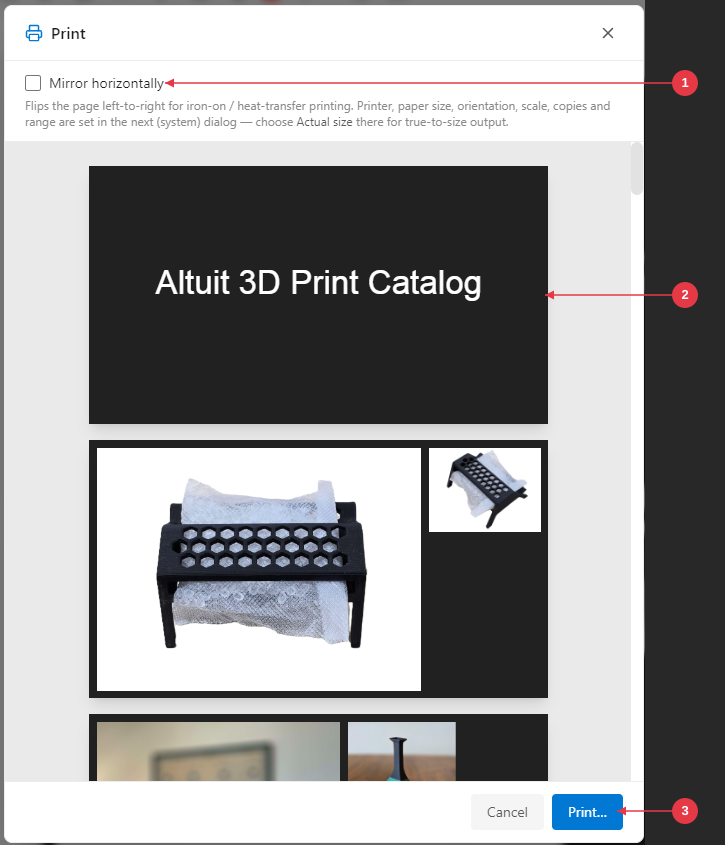
1. **Mirror horizontally** — flip every page left-to-right (for iron-on / heat-transfer).
2. **Preview** — a live preview of the flattened document.
3. **Print…** — hand off to your system print dialog (choose *Actual size* there for 1:1).
The panel shows:
- A live **preview** of the (flattened) document. If Mirror is on, the preview is flipped left-to-right.
- **Mirror horizontally** — flips every page left-to-right, so the document prints mirrored. Useful for **iron-on / heat-transfer** printing and other reverse-image workflows.
- **Print…** — opens your printer's **system dialog**, where you choose the printer, paper size, orientation, scale, copies, and page range. (Mirroring is already baked into the document handed off.)
> **To get true 1:1 sizing**, choose **"Actual size"** in the system dialog's scale option (Windows often defaults to "Fit"). PDF Daisy uses a custom preview panel because Electron can't show a preview inside the native OS print dialog.
> **Layered PDFs** print only the layers that are currently visible in the [Layers panel](#layers).
---
## Preferences & theme
Click **Settings** (gear icon, top toolbar) to open Preferences.
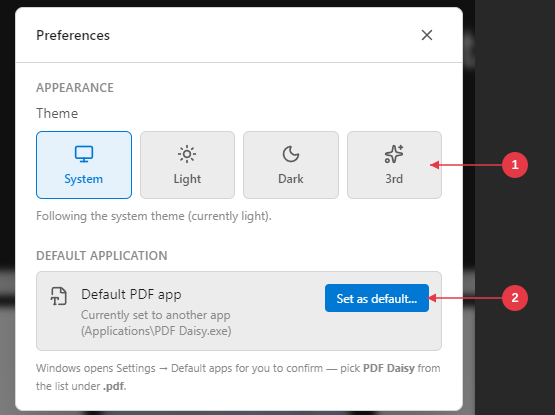
1. **Theme** — System, Light, Dark, or 3rd; applies instantly.
2. **Set as default…** — make PDF Daisy the default `.pdf` handler (Windows).
### Theme
Pick one of four themes:
- **System** — follow your Windows light/dark preference.
- **Light** — the default. Bright background, dark text.
- **Dark** — dark background, light text.
- **3rd** — an alternate dark variant.
The theme applies instantly and persists between sessions.
### Default application
> **Windows only.** This section appears on Windows. On macOS, set PDF Daisy as the default PDF handler the usual way — right-click a `.pdf` in Finder → **Get Info** → **Open with** → PDF Daisy → **Change All…**
The **Default application** section shows whether PDF Daisy is currently the default app for `.pdf` files, and gives you a one-click way to change it.
Click **Set as default…** and three things happen at once:
1. PDF Daisy registers itself as a `.pdf` handler with Windows.
2. A short **walkthrough PDF** opens as a new tab inside PDF Daisy, with screenshots of the next steps.
3. The Preferences panel **closes** and **Windows Settings → Default apps** opens directly on PDF Daisy's per-app page (where `.pdf` is already listed).
You then pick PDF Daisy in Settings as the handler for `.pdf` and you're done. The Preferences panel auto-dismisses so the Settings window and the walkthrough are in front of you, not hidden behind a modal.
> Why two steps? Windows 10/11 removed the in-app API that used to set a file-type default directly. The walkthrough + deep link is the supported path Microsoft left open.
---
## Status bar
At the bottom of the window:
- **File path** (left) — the full path of the current document, truncated from the left so the filename stays visible. **Click it to copy** the full path to the clipboard.
- **Unsaved** indicator — appears when the document has unsaved changes.
- **View Log** (right) — opens the in-app log viewer.
- **Version** — the app version.
---
## About, logs & diagnostics
- **Help** (top toolbar) — opens the **About** window, with the hero image, version, **User manual** link, **Support** (Discord) link, and copyright.
- **View Log** (status bar) — opens the **Log viewer** showing the app's activity log, useful for troubleshooting.
- **Shift + click View Log** — toggles the developer tools (for advanced diagnostics).
---
## Keyboard shortcuts
| Shortcut | Action |
|----------|--------|
| **Ctrl + S** | Save (sidecar; PDF too if pages changed) |
| **Ctrl + Shift + S** | Save As (new file) |
| **Ctrl + C** | Copy the selected page text |
| **Ctrl + F** | Find in document |
| **Ctrl + mouse wheel** | Zoom in / out about the cursor |
| **Ctrl + Z** | Undo last edit (page op, layer removal, or annotation) |
| **Ctrl + Shift + Z** / **Ctrl + Y** | Redo |
| **Delete** / **Backspace** | Delete the selected annotation |
| **F5** | Enter slideshow / full-screen presentation |
| **Esc** | Exit slideshow (or close find bar) |
| **Click** thumbnail | View & select that page |
| **Ctrl/Cmd + click** thumbnail | Toggle page in multi-selection |
| **Shift + click** thumbnail | Select a range of pages |
| **Drag** thumbnail | Reorder pages |
| **Drag** PDF onto the window | Open it (multiple files → multiple tabs) |
| **Middle-click** tab | Close tab |
| **Right-click** Open button | Recent files menu |
| **Right-click** an arrow | Change arrow size (Small / Medium / Large) |
| **Double-click** a text annotation | Edit its text |
| **Click** status-bar path | Copy full file path |
| **Shift + click** View Log | Toggle developer tools |
> On **macOS**, use **⌘ (Command)** wherever **Ctrl** is listed above.
>
> Shortcuts are ignored while you're typing in a text field.
---
## Privacy & offline behavior
PDF Daisy is built to keep your documents private:
- **Fully offline** — the app makes **no** network requests. Rendering, fonts, the OCR engine and its language data, and worker code are all bundled locally. The only way anything reaches the network is when *you* [click a link](#clicking-links) — and that opens in your system browser, not in the app.
- **Local-only** — files are read and written only where you choose on your own disk. Your signature library lives in your local user profile (Windows or macOS).
- **Non-destructive editing** — annotations and OCR live beside the PDF in a sidecar file; page operations work on an in-memory copy; your original PDF is changed only when you explicitly Save, Save As, or Flatten and then Save.
---
*PDF Daisy © 2026 Chipp Walters, Altuit Inc.*