Simple-Align addon
By Chipp Walters
Free download: cw1.me/simple-align
Version: 2.0 (beta) · Blender Version: 4.5+
The Simple-Align addon helps you quickly and precisely align and distribute objects in Blender. Select your objects, press the Align button, and handles appear right in the 3D Viewport around the active (last selected) object. Hover a handle to see where everything will land, click it, and you’re done.
What’s New in 2.0
- Align right in the viewport. Rails with clickable handles appear beside the reference object, for all three axes at once. No more picking a Top/Front/Right working view first.
- Live preview. Hover any handle and orange outlines show exactly where each object will land before you click.
- Distribute in the viewport, with a new Gaps method (equal space between objects of different sizes) and a new Between ends range (the outermost objects stay put).
- Correct results for parented objects, and the Distribute Edges bug where middle objects were spaced from the old positions is fixed.
- The old button grids in the Sidebar are gone. The panel now holds the Align in Viewport button and the shared settings.
Installing
Simple-Align 2.0 is a Blender extension for Blender 4.5 and newer. Download simple_align-beta-2.0.11.zip from cw1.me/simple-align (the same folder as this manual), then drag and drop the zip onto the Blender window, or use Edit › Preferences › Get Extensions › Install from Disk.
Upgrading from 1.x: first remove the old version in Edit › Preferences › Add-ons (search for SIMPLE ALIGN, expand it, click Remove), then install 2.0.
Quick Start
- In Object Mode, select the objects you want to move, then select the reference object last so it becomes the active object.
- Click the Align button in the 3D Viewport header (or press your shortcut).
- Hover a handle to preview, then click it.
Starting Align Mode

- Align button at the right end of the 3D Viewport header. It shows in Object Mode.
You can also start it with Align in Viewport in the Sidebar panel, or with your own keyboard shortcut (see Setting a Shortcut). You need at least two objects selected, one of them active.
While the mode is open:
- Click a handle to apply it. The mode closes.
- Shift+Click applies and keeps the mode open, so you can align X, then Z, then distribute in one go. Each click is its own undo step.
- Esc, right-click, or a click on empty space closes the mode without moving anything.
- Middle mouse, the mouse wheel and the numpad keys still orbit, zoom and switch views.
- Tab switches between Align and Distribute.
Align
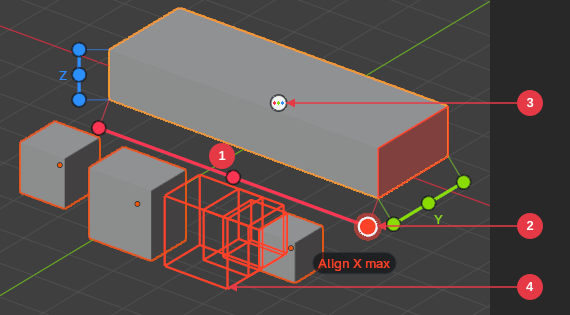
- Rail stops. Each axis gets a rail beside the reference object, colored like Blender’s axes (X red, Y green, Z blue). The three stops on a rail are min, center and max along that axis.
- The stop under the mouse turns orange and names its action, for example Align X max.
- Center hub. Centers the other objects on the reference object on X, Y and Z at once.
- Preview. Orange outlines show where each object will land. The face being aligned to is highlighted on the reference object.
The rails move to the edges facing you as you orbit, so they stay readable from any angle. A rail that points straight at you is hidden. For example, in Top view the Z rail disappears; orbit a little to use it.
Distribute
Press Tab (or click Distribute in the strip at the bottom) to switch to Distribute. Distribute needs at least three selected objects.
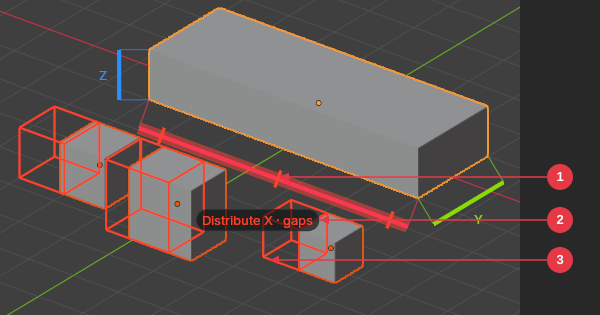
- Click a whole rail to spread the objects along that axis. Tick marks on the rail show where each object’s center will land.
- Label naming the axis and method.
- Preview outlines of the final positions.
Objects keep their current order along the axis.
Range (in the strip):
- Across Reference: the objects spread across the reference object’s box. Offset can grow or shrink that box.
- Between ends: the two outermost objects stay where they are and the rest are spaced between them. The reference object counts as one of the objects here and moves if it sits in the middle. The rails wrap the whole selection.
Method (in the strip):
- Inward: the end objects sit just inside the range; centers spaced evenly.
- Centers: the end objects’ centers sit on the range edges; centers spaced evenly.
- Outward: the end objects sit just outside the range; centers spaced evenly.
- Gaps: equal empty space between neighbouring objects, whatever their sizes.
Between ends offers Centers and Gaps. With Origins on, only Centers applies. Buttons that don’t apply are dimmed.
The Settings Strip
The strip along the bottom of the viewport shows and changes the settings while the mode is open. Simple-Align remembers them for next time.

- Align | Distribute switch (same as Tab).
- Range: Across Reference or Between ends (Distribute only).
- Method: Inward, Centers, Outward or Gaps (Distribute only).
- Origins: measure the objects being moved by their origin instead of their bounding box. The reference object always uses its bounding box.
- Offset and its X / Y / Z values: grow (positive) or shrink (negative) the reference object’s bounding box for the calculation. Click Offset to turn it on or off. Drag a value left or right to change it (hold Shift for fine steps). The rails and preview update as you drag.
- Reminder of the keys.
- Close the mode without changing anything.
The Sidebar Panel
You’ll find the panel in the 3D Viewport › Sidebar (N-panel) › Tool tab.
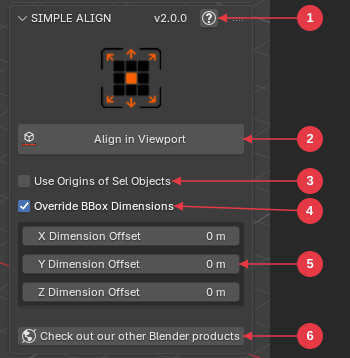
- Version and help link to this page.
- Align in Viewport starts the mode.
- Use Origins of Sel Objects: the same setting as Origins in the strip.
- Override BBox Dimensions: the same setting as Offset in the strip.
-
X / Y / Z Dimension Offset: how much to add to (or subtract from) the reference object’s size on each axis. Half goes on each side. For example,
1.0in X treats the reference as 1 meter wider. Values that would make the box smaller than zero are refused. - Check out our other Blender products opens chippwalters.com.
Setting a Shortcut
Simple-Align ships without a shortcut so it never clashes with yours. To add one, open Edit › Preferences › Add-ons, expand Simple Align, click the empty key field next to Simple Align, and press the key combination you want. It works in Object Mode.
Undo & Redo
Every alignment is one undo step (Ctrl+Z). After the mode closes, the Adjust Last Operation panel (bottom left, or F9) shows what you did. You can change the action there, and for Distribute the range and method too, without opening the mode again.
Good to Know
- Works in Object Mode only.
- Moves are made along the world X, Y and Z axes. Objects keep their rotation and scale.
- Parented objects land in the right place, even under rotated or scaled parents. If you select a parent and its child, the child isn’t moved twice.
- Linked or non-editable objects are skipped, and so is a parent of the reference object. A warning tells you which.
- Objects with constraints get a warning, because a constraint can override the move.
- Empties, lights and cameras are measured by their origin.
Help & Links
-
Help icon
 in the panel header opens cw1.me/simple-align: this manual and the latest download.
 - Check out our other Blender products at the bottom of the panel: chippwalters.com
- Support: Discord
Quick Tips
-
Use
Shift+Clickin the viewport to build your selection; the last selected object is always the reference. - Shift+Click several handles in one session to line objects up on more than one axis.
- Not sure what a handle does? Hover it: the label and preview tell you before anything moves.