[brand-header]

# REEL DEAL — User Manual
(c)2026 Chipp Walters, Altuit, Inc
**Because opening a Windows video should not be a project.**
## Why I built REEL DEAL
I made REEL DEAL because I was tired of video players on Windows.
I wanted to double-click a video, have it open quickly at its actual size, and watch it. Apparently, that was asking a lot.
Windows Media Player rarely opened videos at the size I wanted. Other players were either too limited or came with enough buttons and panels to run a small television station.
I did not want another editor. I already have editors.
I wanted a fast, simple video player that I could set as the Windows default. It should open a video and provide the few tools I often need before launching an editor.
So I built REEL DEAL.
It is Windows-only. It is a player, not an editor. There is no project setup, media bin, editing timeline, or color grading. You open a video, review it, and move on.
## What it does
- **Opens videos at their native size.** REEL DEAL starts in 1:1 native-pixel mode and sizes the window to the video, limited by the available screen. The video opens at its actual size. What a concept.
- **Works as your default Windows player.** Double-click a video in Explorer and it opens in REEL DEAL. You can also drag files into the window or reopen any of your 10 most recent videos.
- **Keeps several videos open in tabs.** Each tab remembers its playhead, marks, In/Out points, loop setting, and volume. The videos stream from disk, so opening five videos does not mean loading five complete videos into memory.
- **Marks exact frames.** Add a mark to any frame, with or without a name. This is much better than writing “there’s a weird bit at around 12 seconds.”
- **Exports and reloads your marks.** Save them as a plain text or CSV file. Leave that file beside the video and REEL DEAL can load the marks again on the exact frames.
- **Saves the frame you are looking at.** Step to a frame and save it as a full-resolution PNG or JPG. It extracts the source frame rather than taking a screenshot of the player. It also saves the frame on screen, not the next frame, which sounds obvious because it should be.
- **Builds a thumbnail strip.** Generate a visual filmstrip at 10-, 5-, or 1-second spacing. Click any thumbnail to jump straight to that point.
- **Loops the part you need to inspect.** Set In and Out points and repeat that section. This is useful when you need to watch the questionable bit for the eighteenth time.
- **Exports a selected section.** Mark a range and save it as a new video without opening an editor.
- **Shows the real file facts.** View the file size, container, codec, resolution, frame rate, bitrate, duration, aspect ratio, pixel format, color space, and live playback data. No guessing what someone meant when they named a file `final_4K_REALLY_FINAL.mp4`.
- **Includes a poor man's AI upscaler.** REEL DEAL can make a local HD or 4K copy with Real-ESRGAN. It will not recover detail that never existed, but it can make some clips more useful. It is a handy built-in option, not a promise of cinematic miracles.
- **Provides useful viewing modes.** Switch among 100%, 50%, 25%, 720p, 1080p, and fullscreen.
REEL DEAL is still in active development. Some codecs that Chromium cannot decode, including some HEVC and ProRes files, may not play yet. I would rather tell you that now than let you discover it after repeatedly clicking Play.
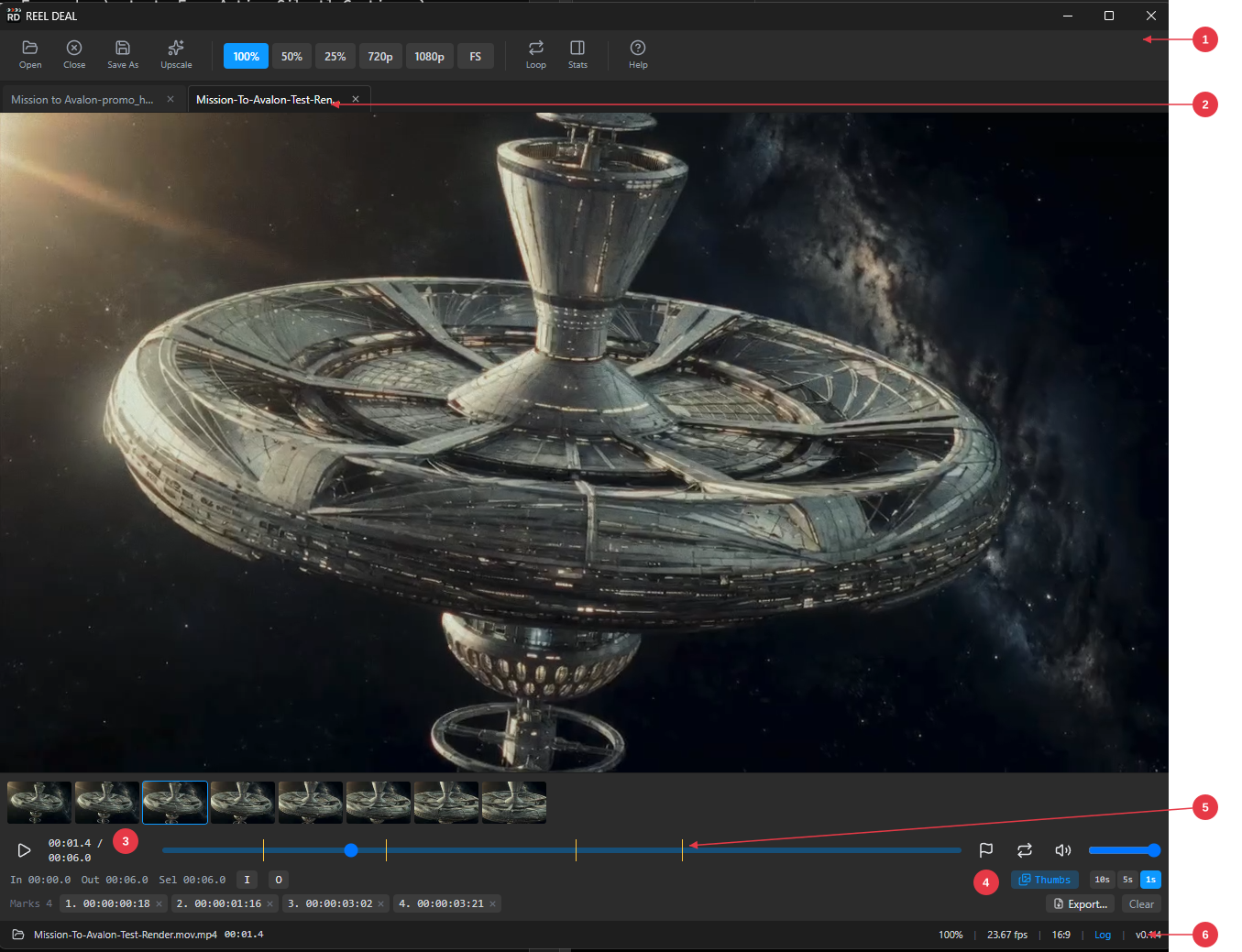
1. **Toolbar** — Open, Close, Save As, Upscale, the window size modes, Loop, Stats, and Help
2. **Tab bar** — one tab per open video
3. **Transport** — play/pause, time, scrubber with mark ticks, mark, loop, mute, volume
4. **Trim row** — In/Out/Sel readout, the I and O buttons, and the Thumbs toggle
5. **Marks row** — one chip per mark, with Export and Clear (only when the video has marks)
6. **Status bar** — file, time, mode, fps, aspect ratio, Log, version
---
## 1. Opening videos
There are four ways to open a video. Each one opens the file in its own tab. Opening a file that is already open switches to its tab instead of duplicating it.
| Method | How |
|--------|-----|
| **Open button** | Click **Open** in the toolbar and pick a file. |
| **Recent files** | **Right-click** the Open button for a menu of your last 10 files. |
| **Drag and drop** | Drop one or more video files anywhere on the window. Each becomes a tab. |
| **Double-click in Explorer** | If REEL DEAL is your default app for a video type, double-clicking the file opens it here. If the app is already running, the file loads as a new tab in the same window. |
Supported types: MP4, MOV, MKV, WebM, AVI, M4V, MPG/MPEG, WMV. Playback uses Chromium's decoders, so some codecs inside those containers, including HEVC and ProRes, may not play. When this happens, REEL DEAL displays a playback error.
## 2. Tabs
Every open video is a tab below the toolbar. Each tab remembers its own playhead position, In/Out points, loop setting, and volume.
- **Click** a tab to switch to it. The video resumes where you left it.
- **Click the ×** on a tab to close it.
- A **•** after the name means the tab has unsaved trim marks.
## 3. Playing and scrubbing
The transport bar sits under the video: play/pause, current time / duration, a scrubber with In/Out selection shading and mark ticks, volume, and mute.

1. **Play/pause** button and the time readout (current / total)
2. **Mark, loop, mute, and volume** controls — the flag marks the frame you are on
3. **Trim readout and the I / O buttons** — set In/Out at the playhead
4. **Thumbs** — shows the timeline filmstrip
**Click the video to pause or resume it.** Space does the same thing, as does the play/pause button.
Pressing **Play when the video is stopped at the end starts it over** from the beginning (or from the In point if you set one).
### Keyboard shortcuts
| Key | Action |
|-----|--------|
| **Space** | Play / pause |
| **← / →** | Step one frame back / forward (pauses playback) |
| **Shift + ← / →** | Step 5 frames |
| **J** | Back 10 seconds |
| **L** | Forward 10 seconds |
| **Home** | Jump to In point (or start) |
| **End** | Jump to Out point (or end) |
| **I** | Set In point at playhead |
| **O** | Set Out point at playhead |
| **M** or **+** | Mark this frame (**M** again on a marked frame removes it) |
| **Shift + M** | Mark this frame and name it |
| **−** | Delete the mark you are sitting on |
| **, / .** | Jump to previous / next mark |
| **Shift + L** | Toggle loop |
| **Esc** | Exit fullscreen / close a menu |
Click the video area first if keys don't respond — it needs focus.
## 4. In/Out points, loop, and trim export
1. Scrub to where the section starts and press **I** (or click the **I** button in the transport bar).
2. Scrub to where it ends and press **O**.
3. The transport bar shows In, Out, and selection length. **Loop** (toolbar button or Shift+L) repeats In→Out.
4. Click **Save As** in the toolbar to export just that section to a new file.
Export first tries to copy the video stream without re-encoding, which is fast and lossless. If the cut cannot land cleanly on a keyframe, REEL DEAL re-encodes it to H.264/AAC and displays a banner.
## 5. Marks
A mark pins a single frame so you can find it again, list it, or hand it to someone else. Marks belong to the tab, so each open video keeps its own.

1. **Mark ticks** — one amber tick per mark on the scrubber. The tick under the playhead brightens
2. **Mark button** — marks the frame you are on, and turns amber when that frame is already marked
3. **Mark chips** — one per mark, in time order; the selected one is outlined. Click to jump, double-click to rename, **×** to delete
4. **Export… and Clear** — write the marks to a text file, or remove them all
**Making them**
- Step or scrub to the frame and press **M** or **+**.
- **Shift + M** marks the frame and asks for a name — "audio pop", "wrong lens", whatever you need.
- Two marks can never share a frame. Marking a frame twice tells you it is already marked.
**Working with them**
- Every mark gets a chip under the transport bar, in time order, with its timecode and name. Click a chip to jump to that frame.
- Amber ticks show where the marks sit on the timeline. Dragging the playhead **snaps** to a mark when you come within a few pixels of one, so landing on a marked frame takes no aim.
- The mark you are sitting on is **selected**: its chip is outlined, its tick brightens, and the flag button in the transport bar turns amber.
- **, / .** jump to the previous and next mark.
- **−** deletes the selected mark. You can also click a chip's **×**, or right-click a chip for **Rename** and **Delete**. Double-clicking a chip renames it.
- **Clear** removes every mark on the video, after asking.
- With a lot of marks the chip row stops growing and scrolls, so it never crowds out the video.
**Exporting and reloading**
Click **Export…** to write the marks to a text file. `.txt` gives an aligned table; `.csv` gives a spreadsheet. Both carry the timecode, the **frame number**, the time in seconds, and the name:
```
# Timecode Frame Seconds Label
1 00:00:00:15 15 0.500 opening
2 00:00:01:15 45 1.500 middle beat
```
Leave that file next to the video — named `_marks.txt`, which is what Export offers — and REEL DEAL loads it the next time you open the video, telling you how many marks came back. The frame number is what gets read, so a mark returns to the exact frame you set it on. `.csv`, and the `.marks.txt` / `.marks.csv` spellings, work too.
Marks are **not** saved on their own. Export before you close the video, or they are gone.
The timecode reads HH:MM:SS:FF, where FF counts frames inside that second. For a video with no frame rate in its file details, marks fall back to timestamps — the export says so, and the frame column reads `—`.
## 6. Window size modes
The toolbar's mode buttons size the **window to the video**, so what you see is exact:
| Button | Meaning |
|--------|---------|
| **100%** | Native size — one screen pixel per video pixel |
| **50%** | Half native size |
| **25%** | Quarter native size |
| **720p** | Content area 1280×720 |
| **1080p** | Content area 1920×1080 |
| **FS** | Fullscreen — video only, no controls. Press **Esc** to exit |
Each button sizes the window to the video in **both** directions, and the picture comes out at exactly the size named: at 50% a 1920×1080 video shows at 960×540. Showing the thumbnails or the stats panel grows the window rather than shrinking the picture.
The window keeps its **top-left corner** when it resizes, so it stays where you put it instead of jumping to the middle of the screen. It moves only when the new size would hang off an edge, and then only far enough to fit — the status bar tells you when that happens.
A video opens at 100%. If that would not fit the screen, the window is clamped to the work area and the status bar says so — pick 50% or 25% to see the whole frame. At 25% a small video can leave the window narrower than the toolbar; the toolbar scrolls sideways so every button stays reachable. The status bar shows the current mode, and the video's aspect ratio beside it.
## 7. Timeline thumbnails
Click **Thumbs** in the transport bar to show a filmstrip above the scrubber.

1. **Filmstrip** — one thumbnail per interval. The blue border marks the frame nearest the playhead.
2. **Thumbs toggle and interval picker** — 10s (default), 5s, or 1s spacing
- Frames appear one by one as they are extracted — no waiting for the whole strip.
- **Click any thumbnail to jump to that moment.**
- The **10s / 5s / 1s** buttons pick how far apart the thumbnails are (default 10s). The strip is capped at 120 thumbnails; on long videos the spacing widens and the status bar tells you the real spacing.
- Thumbs are only generated while the strip is open. Closing it stops any work in progress.
## 8. Saving a frame
**Right-click the video** to save the current frame as **PNG** or **JPG**. The frame is extracted from the source file at full native resolution — it is not a screenshot of the window.
You get the frame on screen — step to it with the arrow keys, then save. The save dialog opens in the folder you saved the last frame to, so a run of stills all lands in one place.
## 9. AI upscale
Click **Upscale** in the toolbar to export the video at **HD (1920w)** or **4K (3840w)** using Real-ESRGAN. Upscaling runs offline on your GPU and can take some time. The status bar shows its progress.
AI upscaling creates new detail based on patterns in the source. It can make a video look sharper, but it cannot recover detail that the source never captured.
Upscaling requires the Real-ESRGAN tools on the machine (see BUILD.md). If they are unavailable, REEL DEAL displays an error with setup information.
## 10. Stats panel
Click **Stats** in the toolbar to open a right-hand panel with the file's container, codec, resolution, frame rate, bit rate, and duration. The panel also shows live playback details, including dropped frames and viewport size. ffprobe supplies the file details, and the player supplies the live playback data.
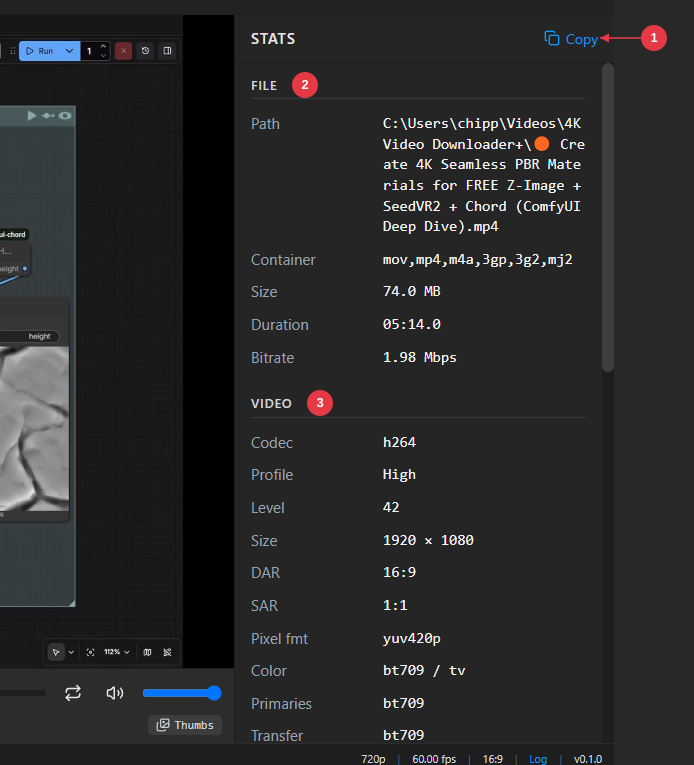
1. **Copy** — copies all stats to the clipboard
2. **FILE** — container, size, duration, bitrate
3. **VIDEO** — codec, resolution, aspect, pixel format, color space
## 11. Status bar
The footer, left to right:
- **Folder button** — opens the file's location in Explorer.
- **Filename** — hover for the full path.
- **Current time**, plus trim/export/status messages as they happen.
- **Mode / aspect ratio / fps** for the open file.
- **Log** — opens the app log viewer (useful when reporting a problem).
- **Version.**
## 12. Advanced: AI assistant control
AI assistants can control REEL DEAL through MCP. While the app is running, an assistant such as Claude Code can open videos, control playback, seek, set In/Out points, export trims, save frames, and capture the window.
Sessions launched from `D:\GitHub\reel-deal` use the repo's `.mcp.json` automatically. For sessions launched elsewhere, point the MCP configuration to `mcp-server\index.js`; see `D:\GitHub\reel-deal\mcp-server\README.md`. REEL DEAL must be running before an assistant can connect.
## 13. Troubleshooting
| Symptom | What to do |
|---------|-----------|
| Amber banner: tools missing | The app can't find ffmpeg/ffprobe. The packaged app ships them; in dev, put them in `binaries\win32\` or on PATH. |
| "Playback failed — Chromium cannot decode this file" | The codec isn't supported by the built-in decoder (common for HEVC/ProRes). Transcode to H.264 first. |
| Double-clicking a file opens a new empty window | You are running an old build. Update the installed copy to the current version. |
| Keys don't work | Click the video area to give it focus. |
| Marks next to the video didn't load | The file must sit beside the video and be named `_marks.txt` (or `.csv`, or the `.marks.*` spellings), and it must be one REEL DEAL wrote. The status bar says how many marks loaded, or says the file held none. |
| A saved frame looks a frame off | Step to the frame with ← / → and check the frame number in the right-click menu before saving. |
| Something else | Click **Log** in the status bar and check the most recent lines. |
---
*A CHIPPWALTERS tool.*